

Getting Started
Navigate to Campaigns in the left menu. This is where you’ll see:- Drafts for campaigns in progress
- AI Launch for AI-generated campaigns (covered in the next guide)
- Templates for saved configurations
- Launches for campaigns published to Meta
Campaign Level Settings
Basic Configuration
1
Select your ad account
Choose the ad account you want to publish to from the dropdown at the top.
2
Choose your campaign objective
Pick your objective: Sales, Leads, or Traffic.
3
Set your campaign name
Enter a campaign name or use naming tokens for automatic naming.
4
Configure your budget
Choose between Campaign Budget Optimization (CBO) or ad set-level budgets and set the amount.
Ad Set Level: Building Audience Variants
This is where AdStellar’s bulk capabilities really shine.Basic Ad Set Setup
1
Set your ad set name
Enter a name or use naming tokens for automatic naming.
2
Configure your budget and schedule
Set the daily or lifetime budget and your start/end dates.
3
Set your targeting locations
Add the geographic locations you want to target.
4
Configure demographic and interest targeting
Set age, gender, and detailed targeting options like interests and behaviors.
Creating Audiences with the Winners Hub
When building audiences, click into the Winners Hub to see performance data from your imported campaigns. This shows you exactly what has worked before: Locations: See spend, clicks, results, and cost per result for each location you’ve used.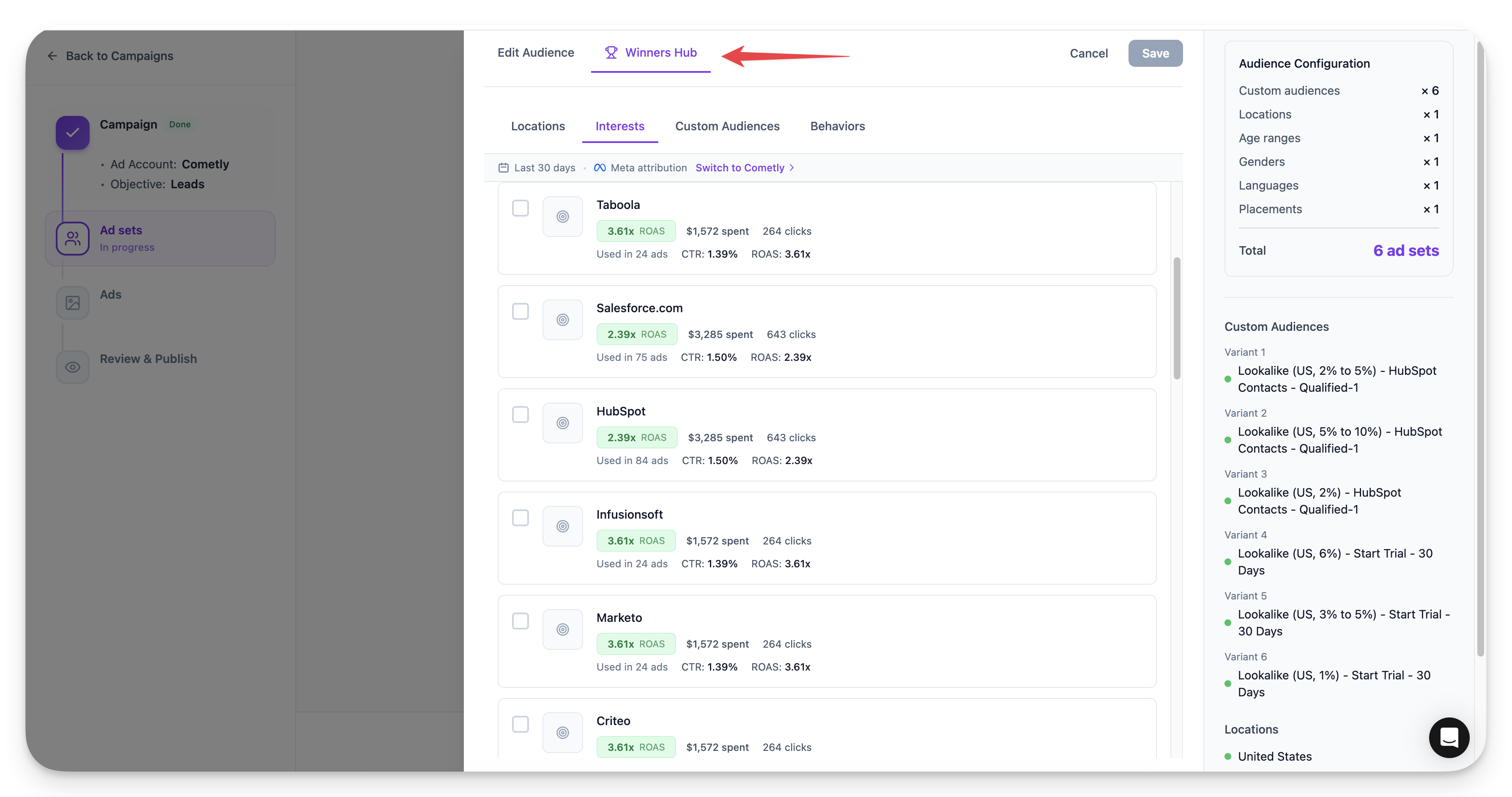
The Power of Variants
Instead of duplicating ad sets manually in Meta, AdStellar lets you create variants that automatically multiply into separate ad sets.Example: Testing Three Interests
If you want to test three different interests in their own ad sets:1
Create your first audience
Set up your base audience with Interest A.
2
Add a second variant
Click Add Variant and add Interest B to the new variant.
3
Add a third variant
Click Add Variant again and add Interest C.
4
Review your variants
You now have 3 ad sets, one for each interest.
Combining Multiple Variant Types
Variants multiply together:- 2 custom audience variants x 3 detail targeting variants = 6 ad sets
- Add 2 age range variants and you get: 2 x 3 x 2 = 12 ad sets
Saving Audiences
Give your audience a name and click Save. You can reuse saved audiences in future campaigns or select multiple audiences to expand your tests further.Ad Level: Building Creative Variants
Click Continue to move to the ad level.Basic Ad Setup
1
Select your ad format
Choose single image/video or carousel.
2
Choose your Facebook Page
Select your Facebook Page (required) and optionally link an Instagram account.
3
Build your ad creative
Add your media, headline, primary text, description, and call to action.
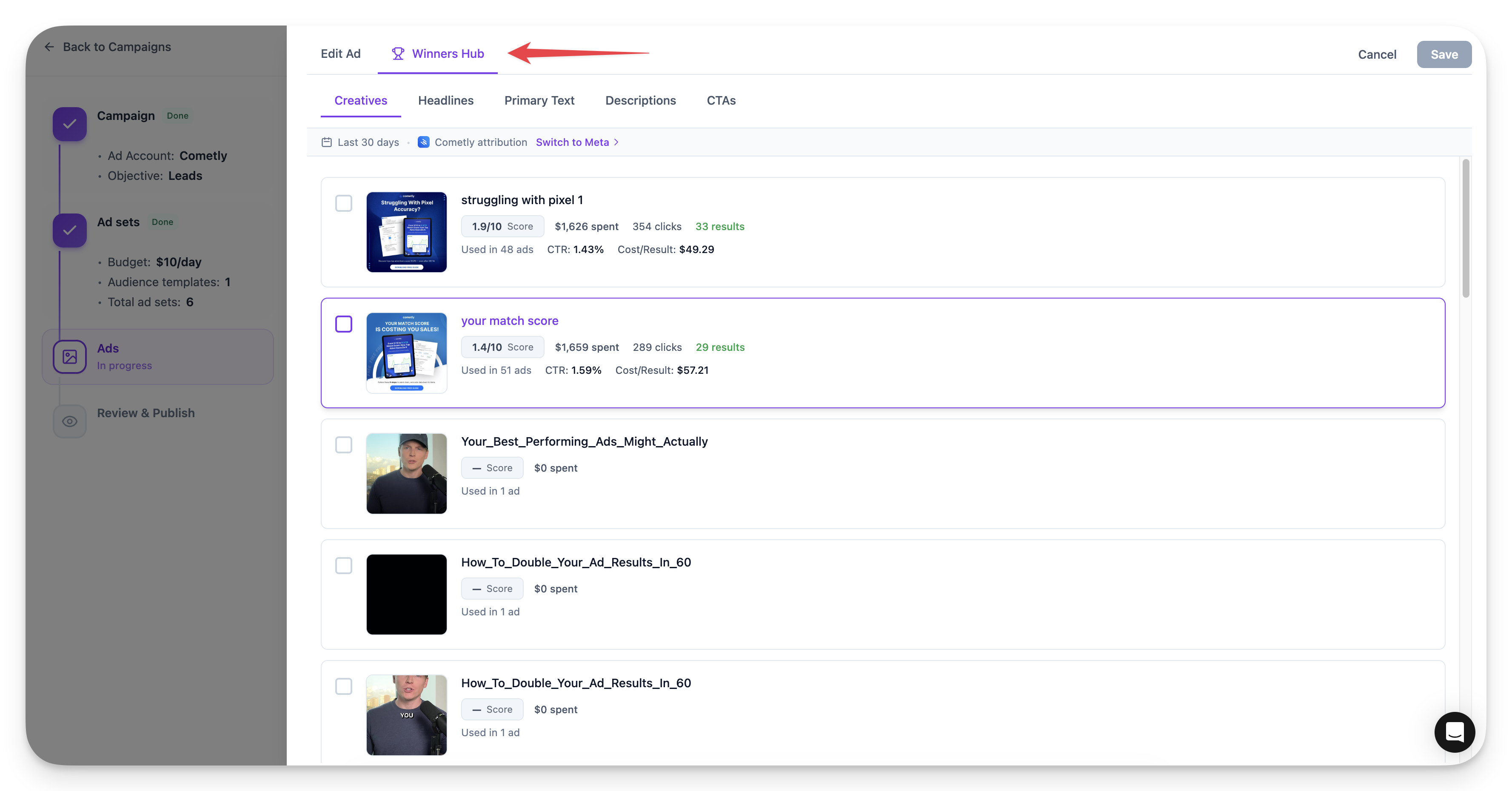
Creating Ads with the Winners Hub
You can start from a template (pulled from your imported campaigns) or create a new ad from scratch. Click Edit on any template to customize it. The Winners Hub is available here too, showing performance data for:- Media assets (images and videos)
- Headlines
- Primary text
Creative Variants
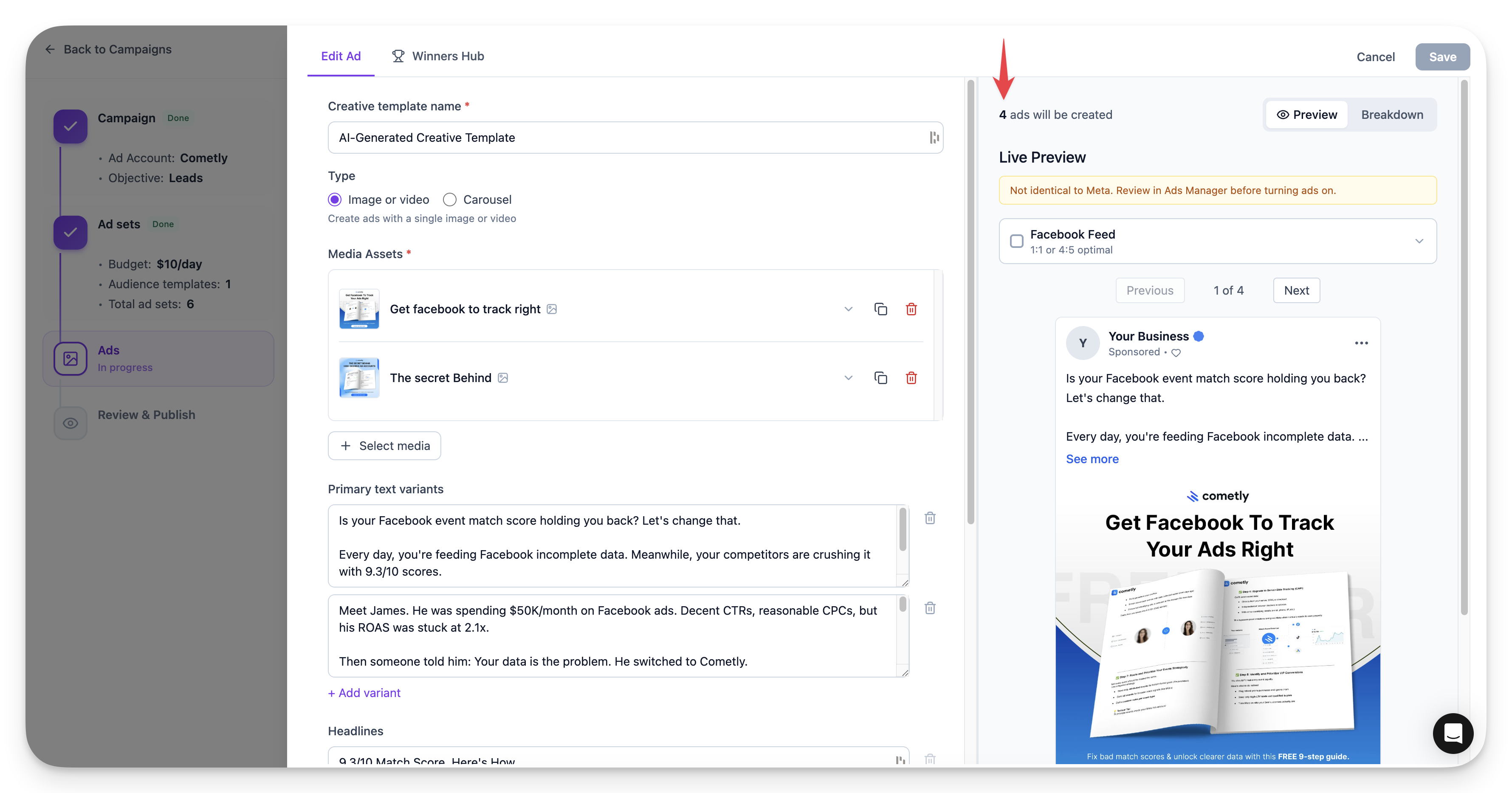
The variant system works the same way at the ad level: Example: Building 8 Ad Variations- 2 media assets (images or videos)
- 2 primary text variants
- 2 headline variants
- Result: 2 x 2 x 2 = 8 unique ad combinations
UTM Parameters
Add UTM parameters for tracking. You can save parameter templates for reuse (useful if you’re using tools like Cometly or other attribution platforms).Review and Publish
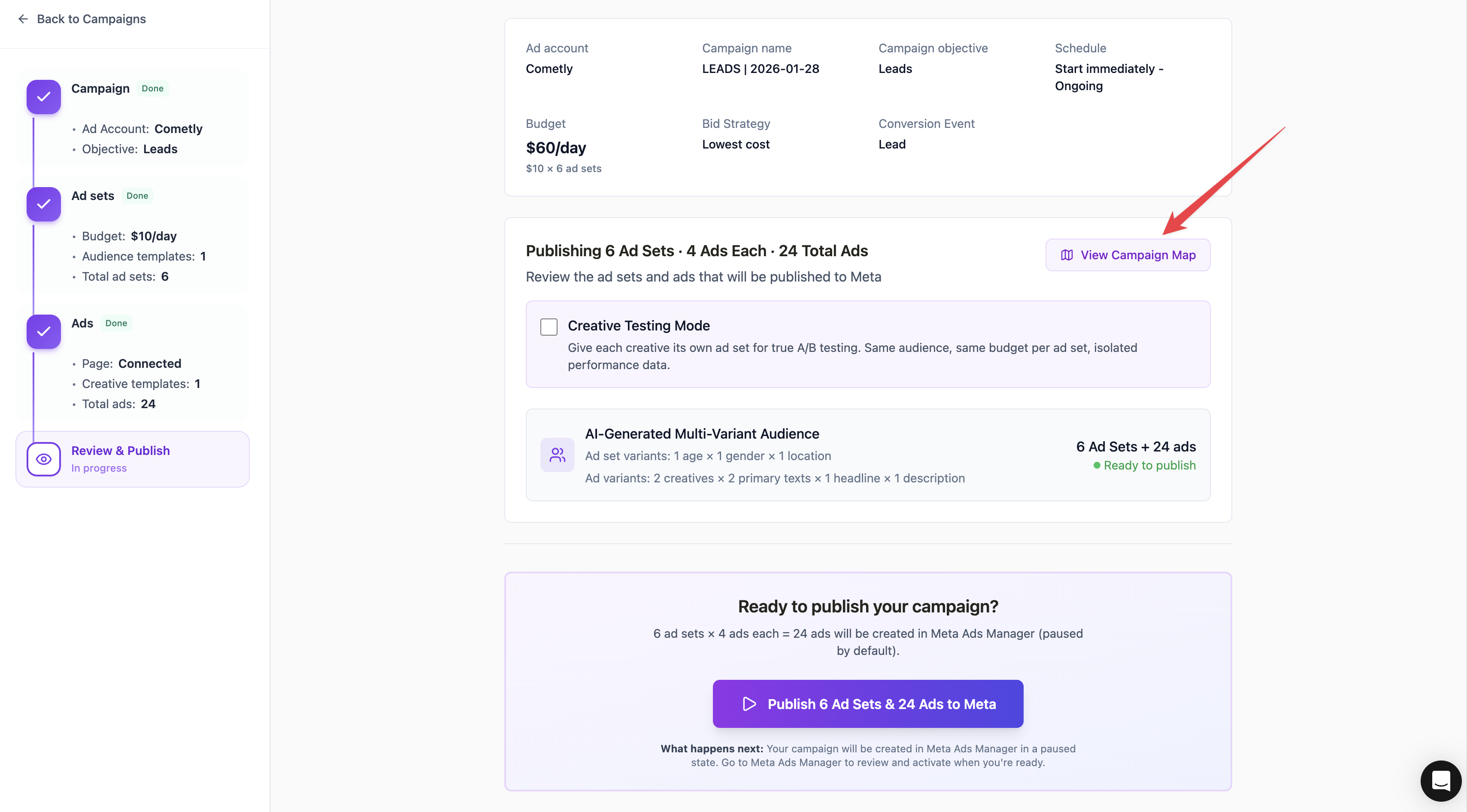
Click Continue to Review to see a summary of your campaign.Review Page Overview
The review page shows:- Total ad sets to be published
- Total ads per ad set
- Total ad variations (ad sets x ads)
- Any errors that need to be fixed before publishing
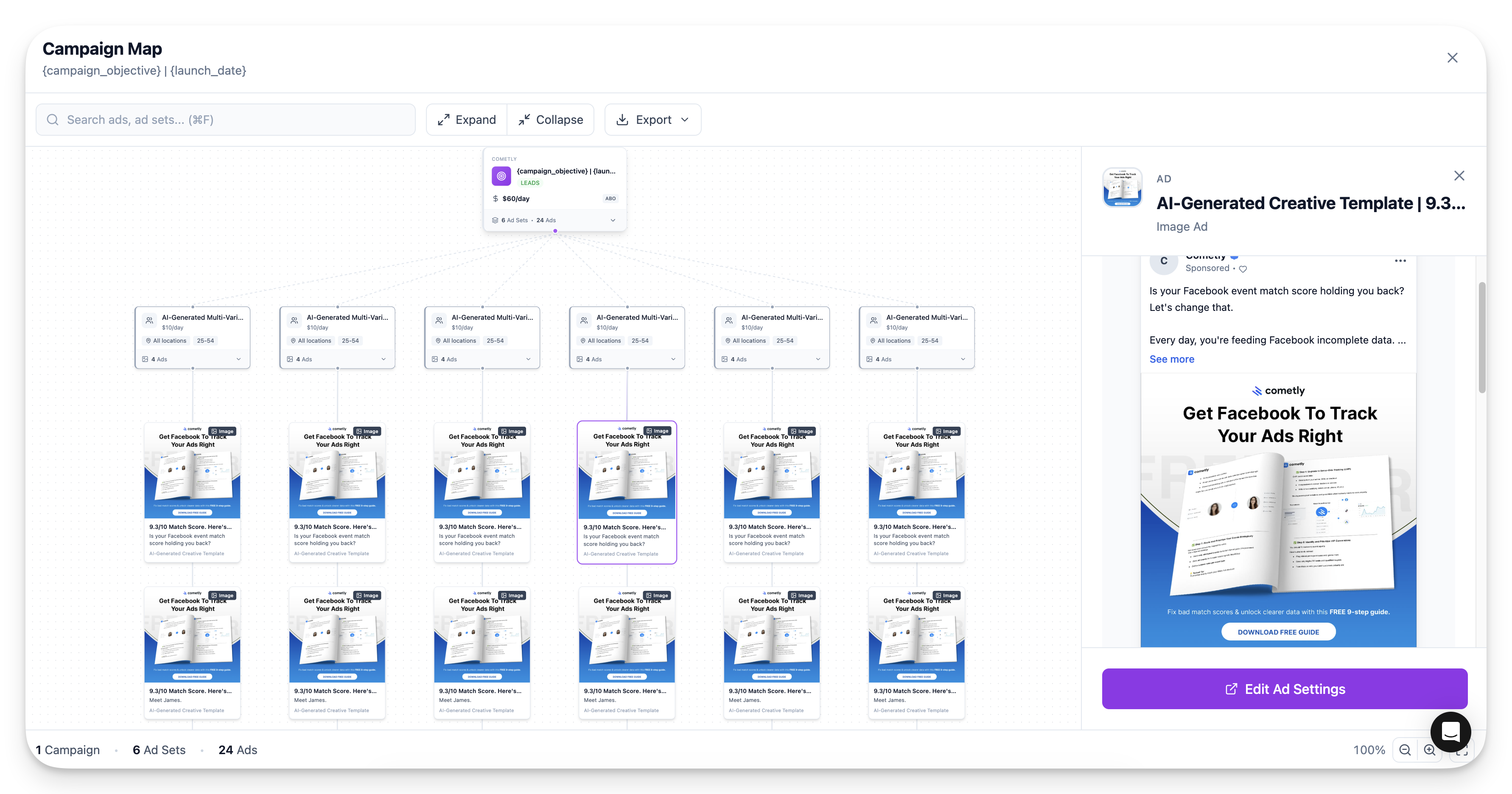
Campaign Map
Click Campaign Map to visualize your entire campaign structure:- See all ad sets at a glance
- Click into any ad set to see its targeting
- Click into any ad to preview the creative variation
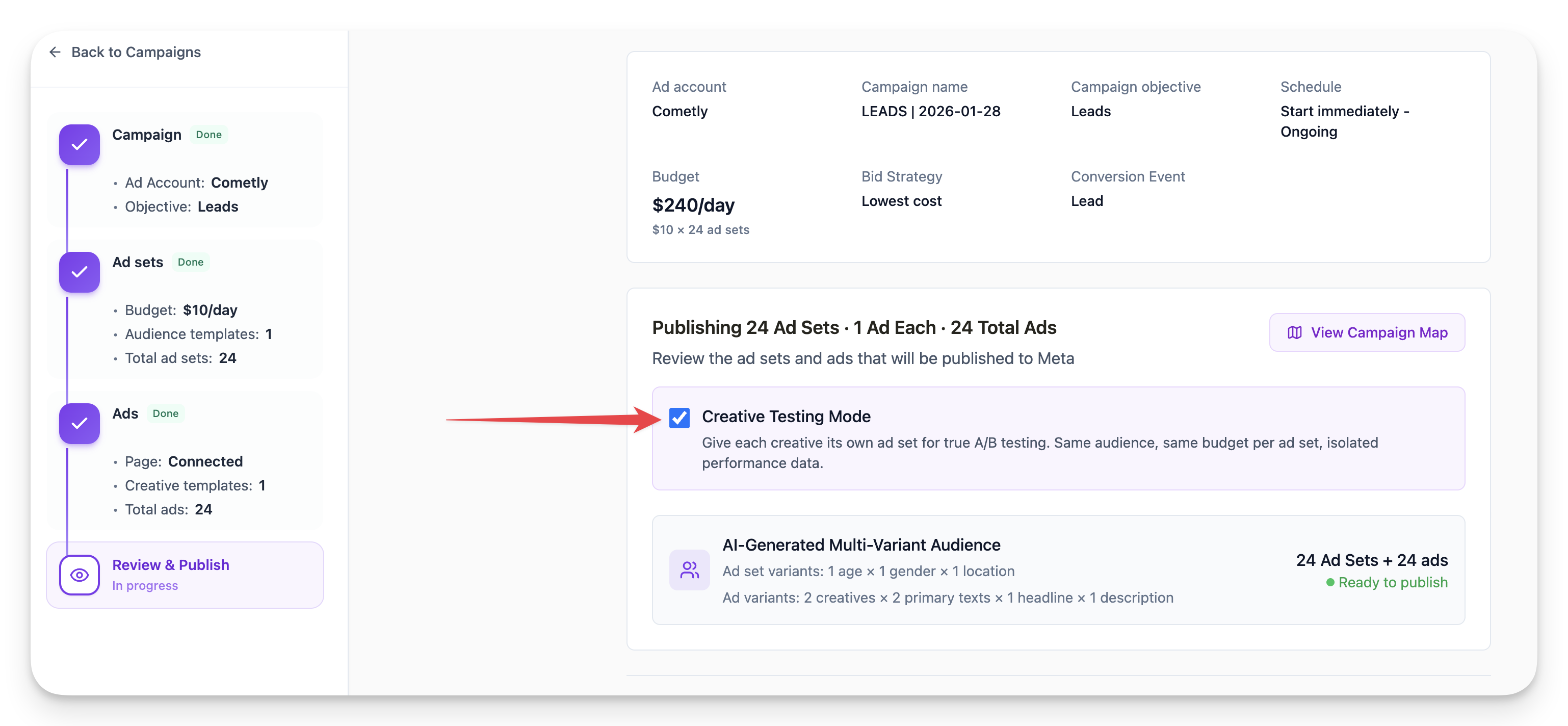
Creative Testing Mode
Toggle on Creative Testing Mode to put each unique ad into its own separate ad set.- Without Creative Testing Mode: 12 ad sets with 4 ads each (48 total ads)
- With Creative Testing Mode: 48 ad sets with 1 ad each
Publishing to Meta
Click Publish to send the campaign to your Meta ad account.Campaigns publish as inactive. This lets you review everything in Ads Manager before turning them on.
Setting Goals
After publishing, you’ll be prompted to configure results and goals:1
Select the campaign
Choose the campaign you just published.
2
Choose a result metric
Pick the metric that matches your campaign goal (e.g., Purchases, Leads, Add to Carts).
3
Set a cost goal (optional)
Define a target cost per result if desired.
Monitoring Your Launch
The launch progress screen shows:- Percentage complete
- Ad sets created
- Ads created
After Publishing
Once complete:- Click View in Meta to open your campaign in Ads Manager
- Review the campaign structure
- Turn on ad sets when ready to go live