

Ads Manager
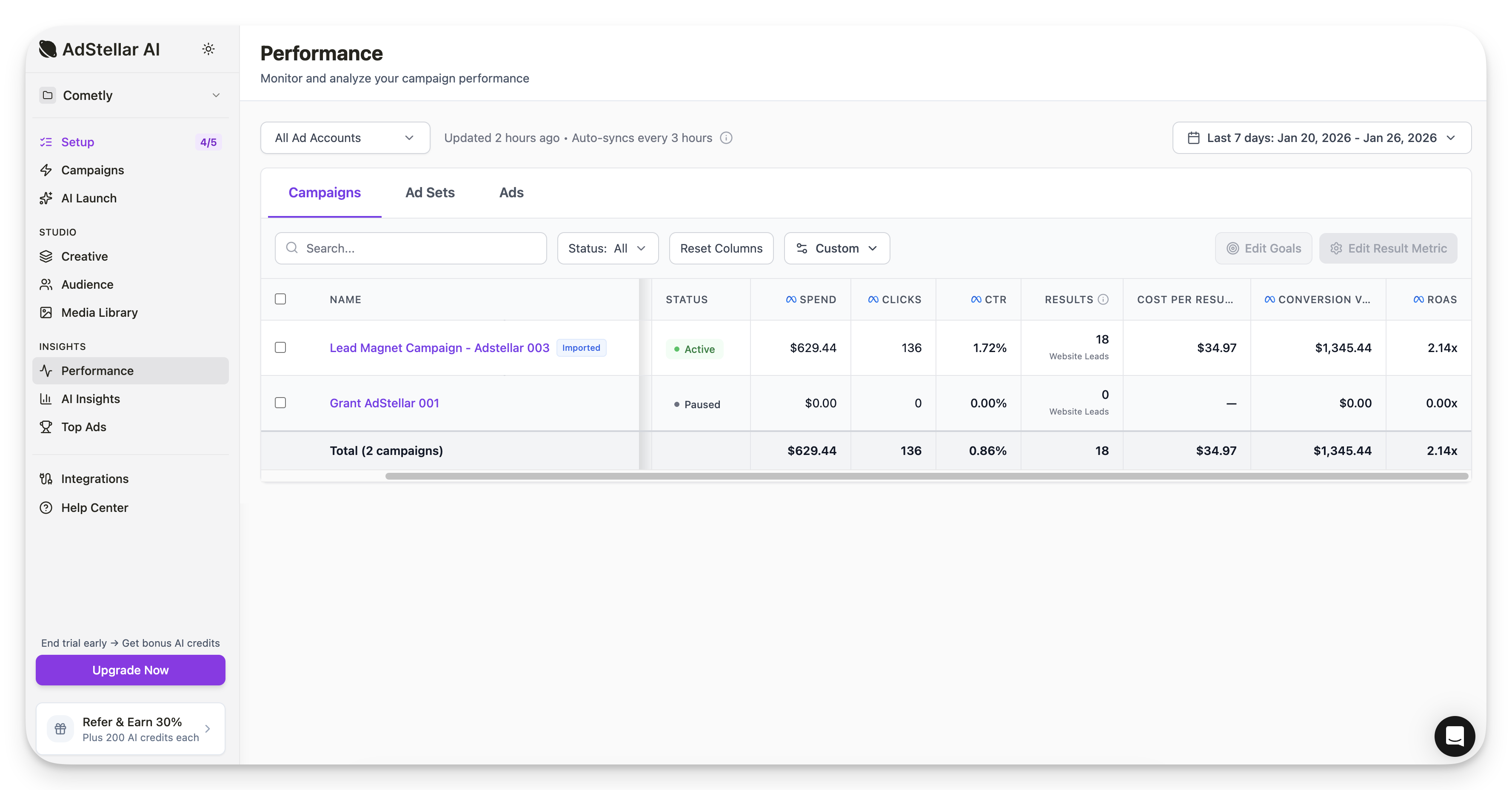
After importing your campaigns and setting goals, Ads Manager displays your key metrics:- Results (website leads, purchases, etc.)
- Conversion value
- ROAS
- All other data pulled directly from Meta
The AI Insights Page
This is where AdStellar truly differentiates itself. When you imported your campaign, you didn’t just import raw data — you imported audiences, headlines, creatives, copy, and everything else. AdStellar parses out each component of your ad campaign so you can analyze them individually.Analyzing Creatives
On the AI Insights page, select Creative to see performance data for each creative asset.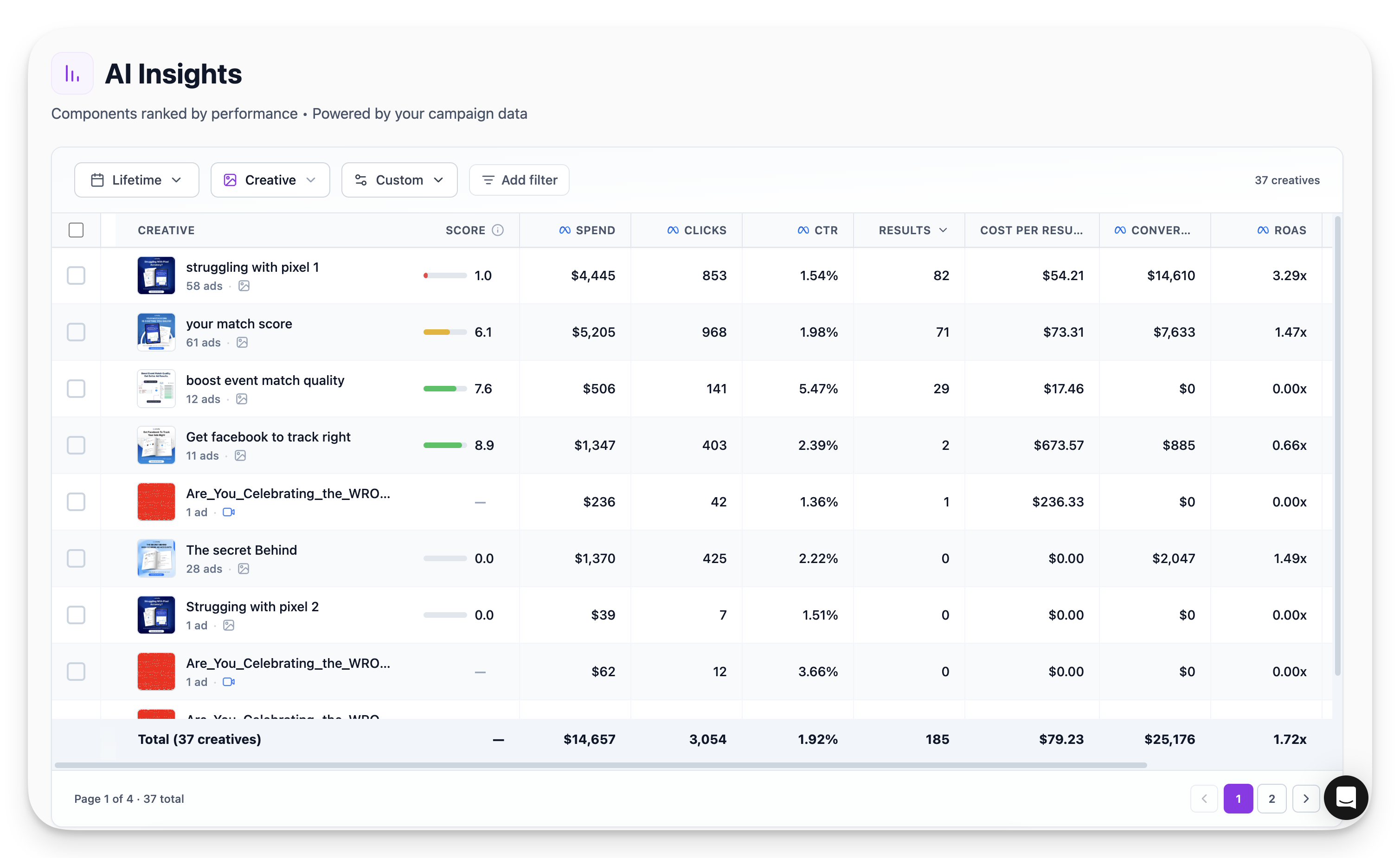
1
Expand a creative's details
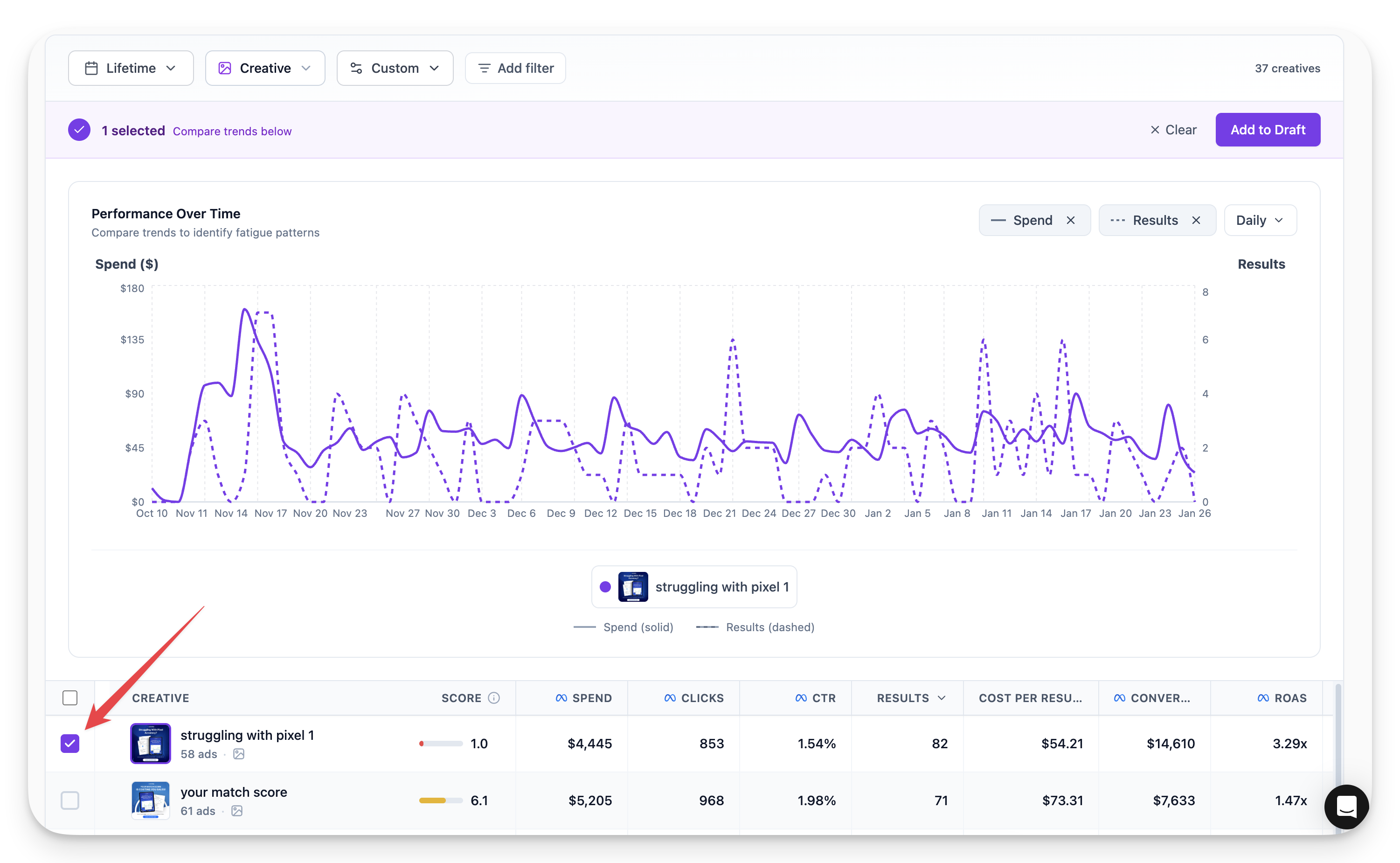
Click on any creative in the list to open its detailed performance view.
2
Review the performance chart
View the chart showing how key metrics (cost per result, results, spend) trend over your selected date range.
1
Select a creative and open its performance chart
Click on the creative you want to evaluate.
2
Expand the date range
Widen the date range to see longer-term performance trends.
3
Look for declining performance
Watch for a rising cost per result or declining results over time.
4
Identify fatigued creatives
If the trend line shows consistent degradation, the creative is likely fatigued and should be refreshed or replaced.
Analyzing Headlines
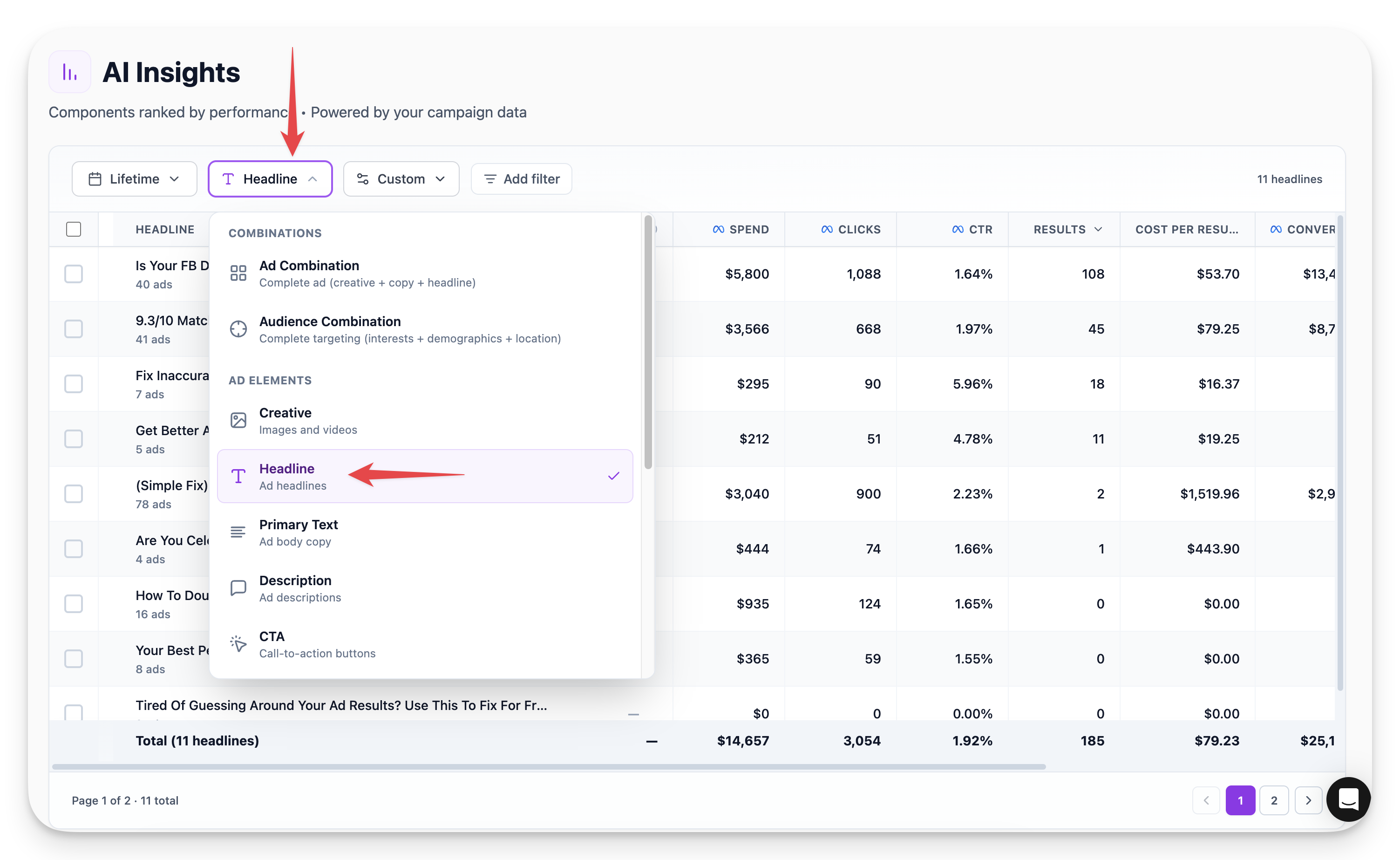
Switch to the Headline view to compare headline performance across your ads. For example, you might see:- Headline A: 59 results at $39 cost per result, used on 8 ads
- Headline B: Better performance at $26 cost per result, used on 7 ads
Analyzing Ad Combinations
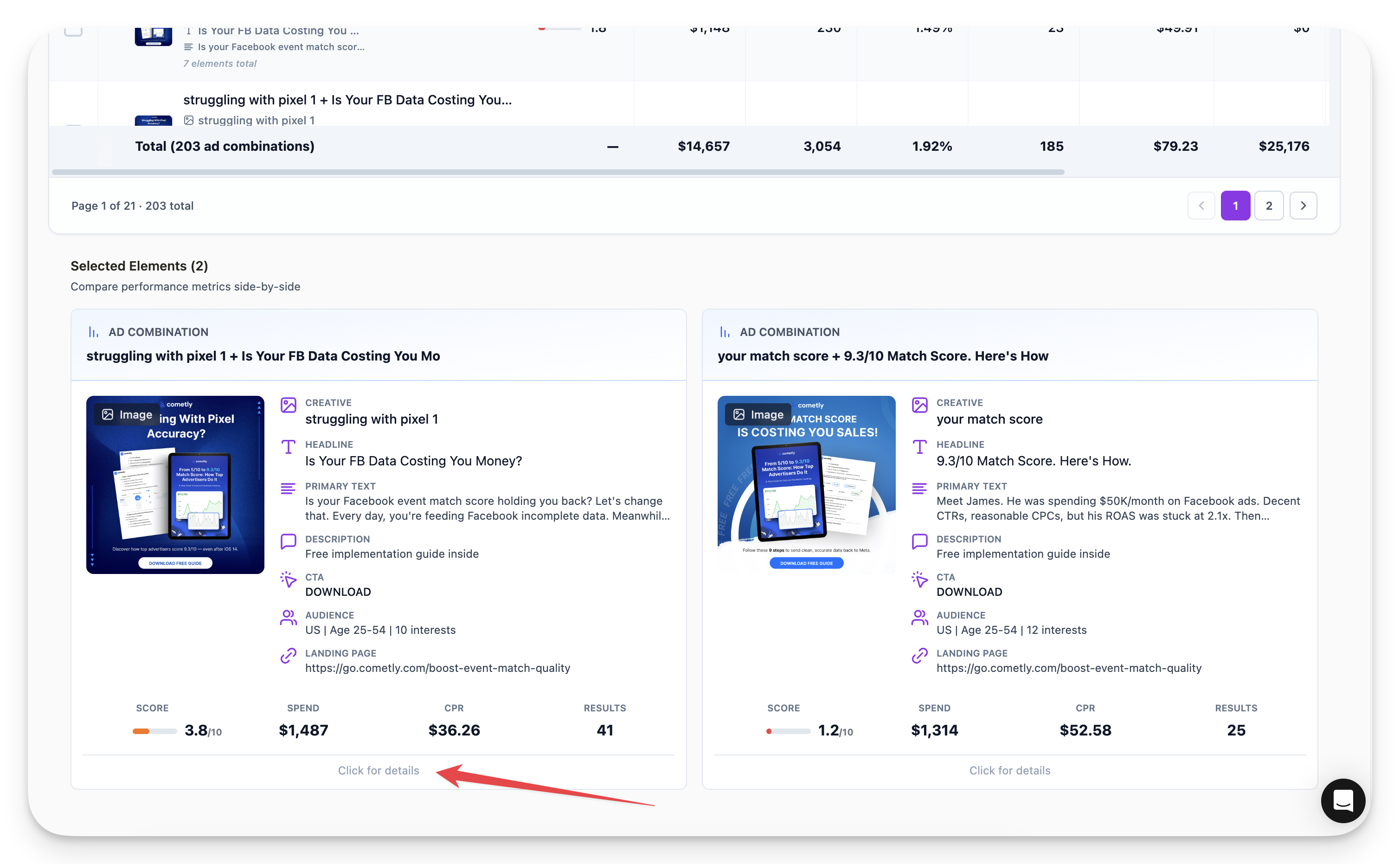
The Ad Combination view pulls everything together — creative, headline, copy — to show complete ad performance. Tips for using this view:- Sort by Results to see top performers
- Adjust the date range (e.g., last 30 days) for relevant data
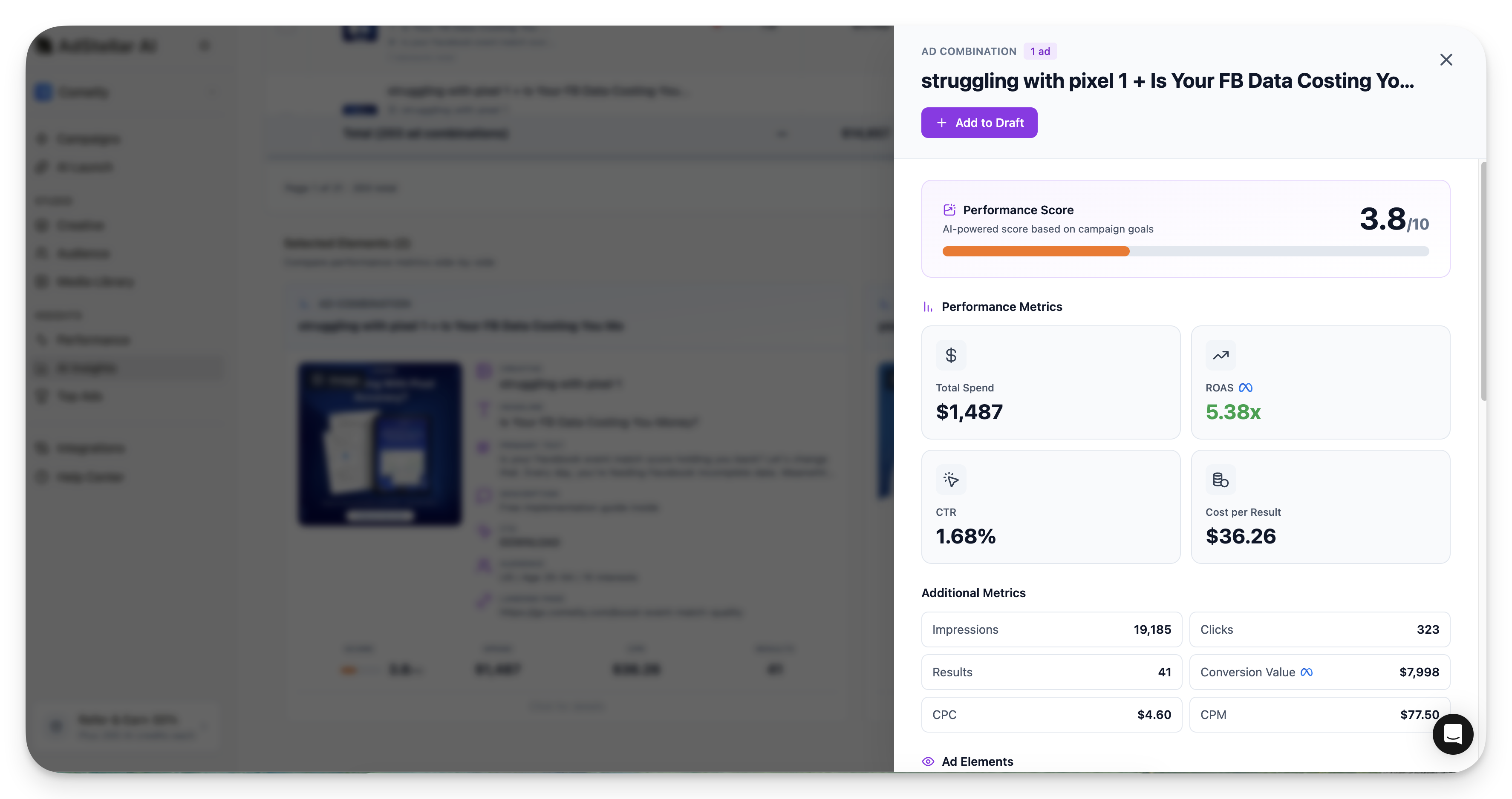
- Click any combination to view its performance chart over time
- Select multiple ads for side-by-side comparison on the chart
- Performance metrics and numbers
- The actual creative image/video
- Copy text
- Headline
Filtering and Customization
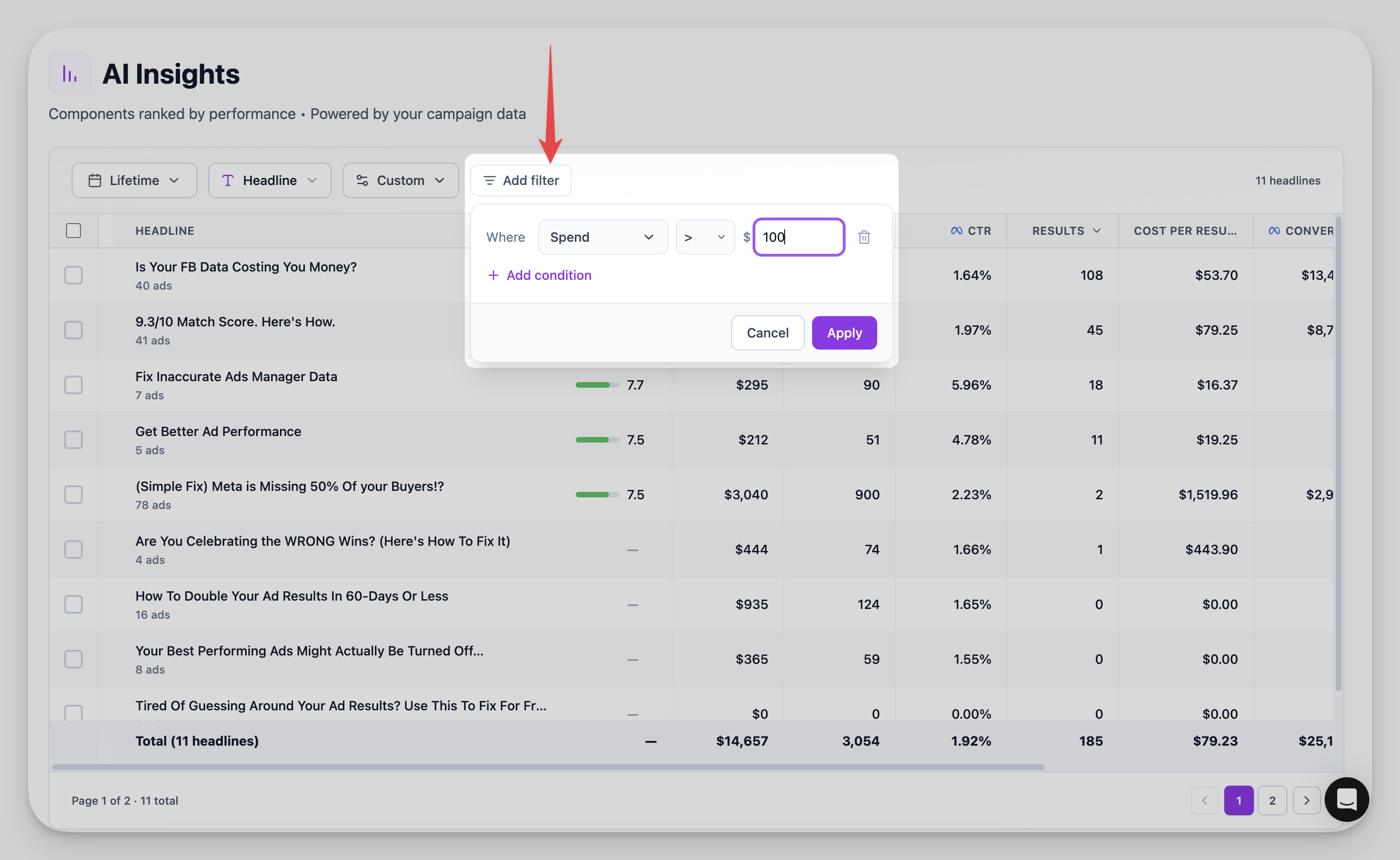
You can filter your data to focus on what matters most:- Filter by minimum spend threshold to exclude low-data ads
- Customize columns to show the metrics you care about
- Use the various viewing options to analyze data in different ways
How AI Insights Powers Your Future Campaigns
All the data visible on the AI Insights page feeds directly into AdStellar’s AI engine. When you use the AI Launch feature, the system draws on these insights to make smarter ad combination decisions for your new campaigns.Quick Tip: Add to Draft
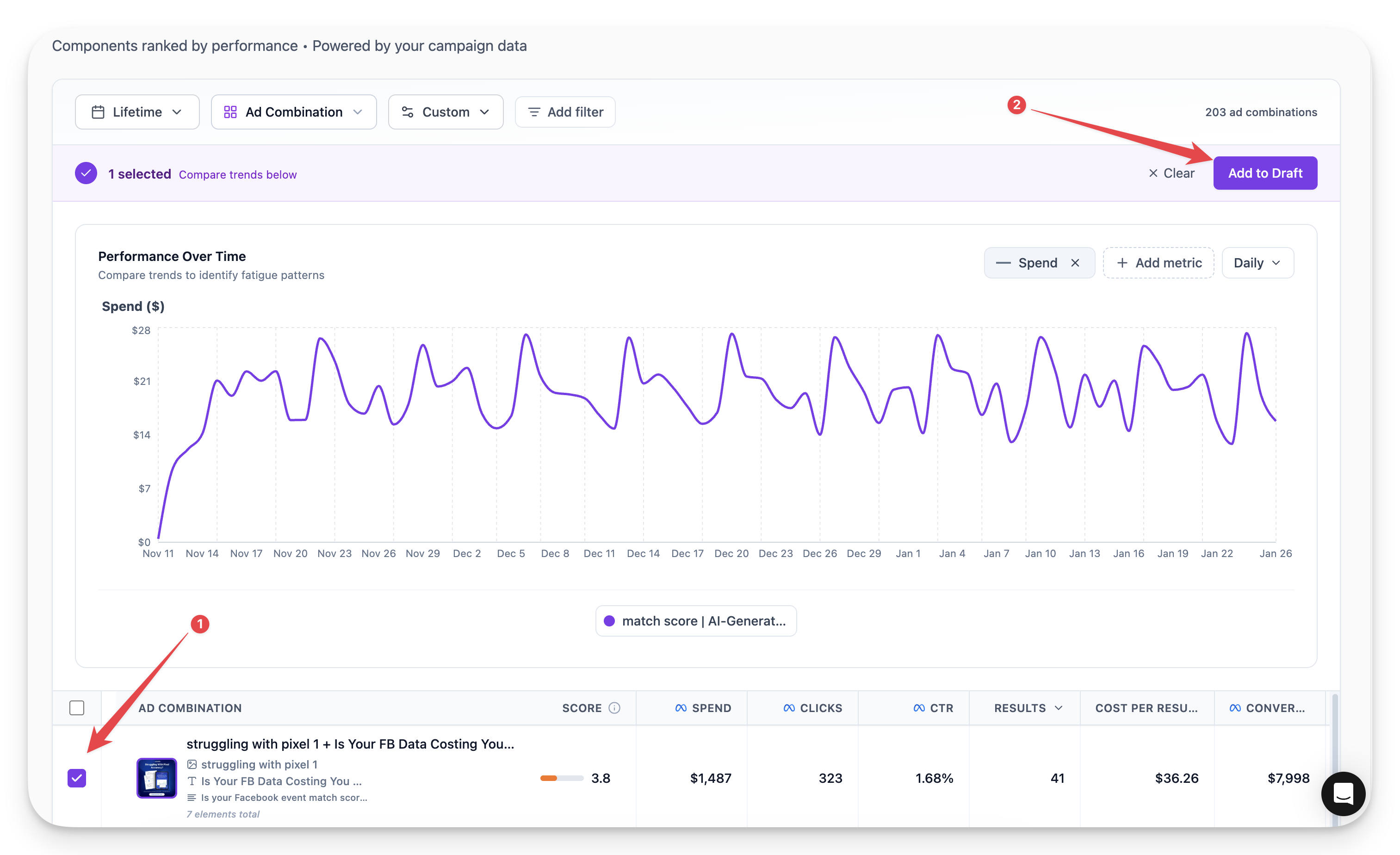
When you find a top-performing ad combination you want to relaunch:1
Select the ad combination
Click on the top-performing ad combination from any insights view.
2
Click Add to Draft
Click the Add to Draft button to save the combination.
3
Use it in your next campaign
The combination is saved and ready to use in your next campaign via the launcher.
Spend time exploring the AI Insights page and learning how to use each view. The insights you gain here will help you make smarter decisions about which creatives, headlines, and combinations to use in future campaigns.