

Step-by-Step Setup
1
Open the Meta integration
Log in to your AdStellar AI account. In the left-hand sidebar, click Integrations, then select the Meta card to open the Meta integration page. You’ll see the Connect Meta section. If you haven’t connected yet, click the Sign in with Facebook button to begin.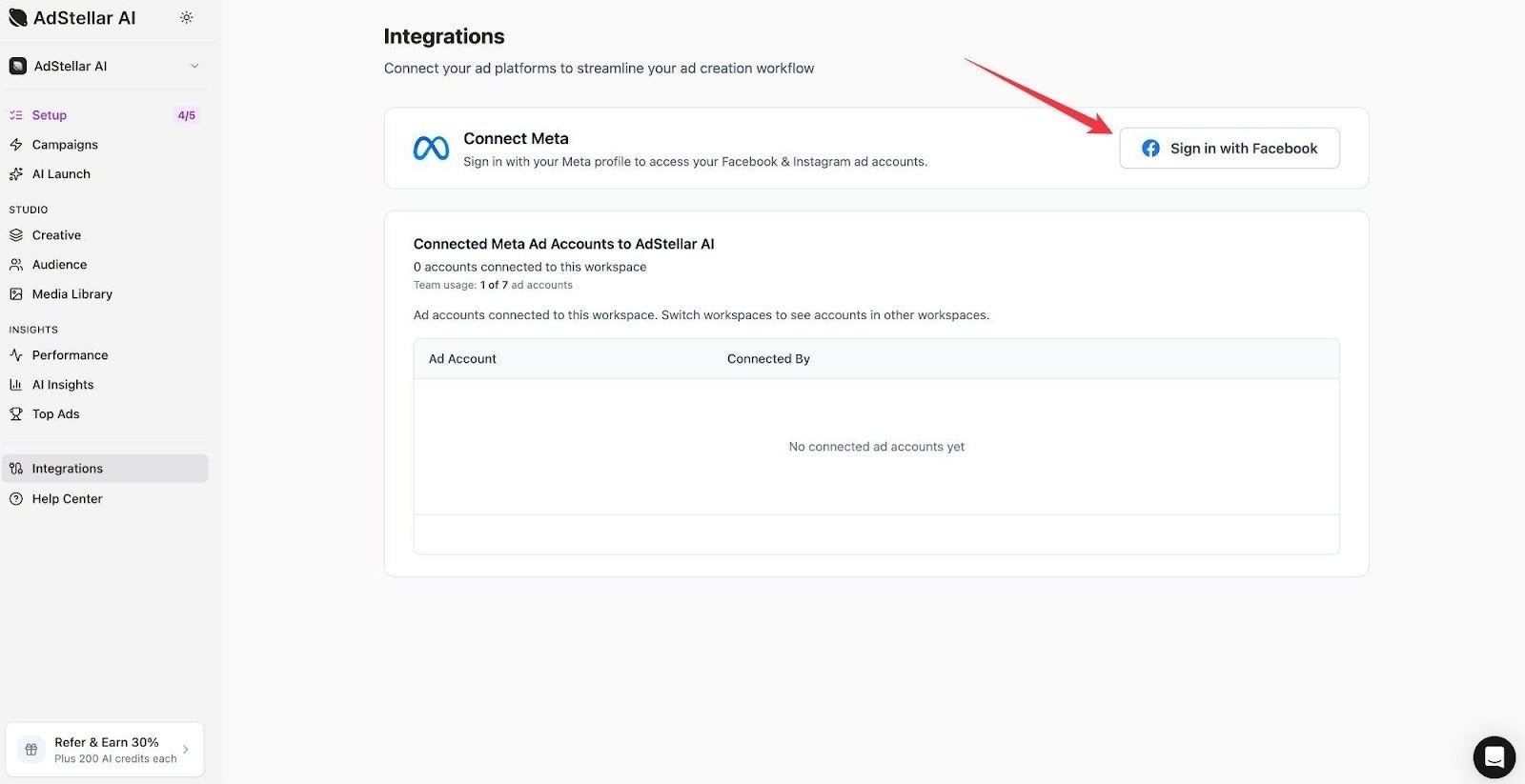
2
Reconnect or Edit Settings
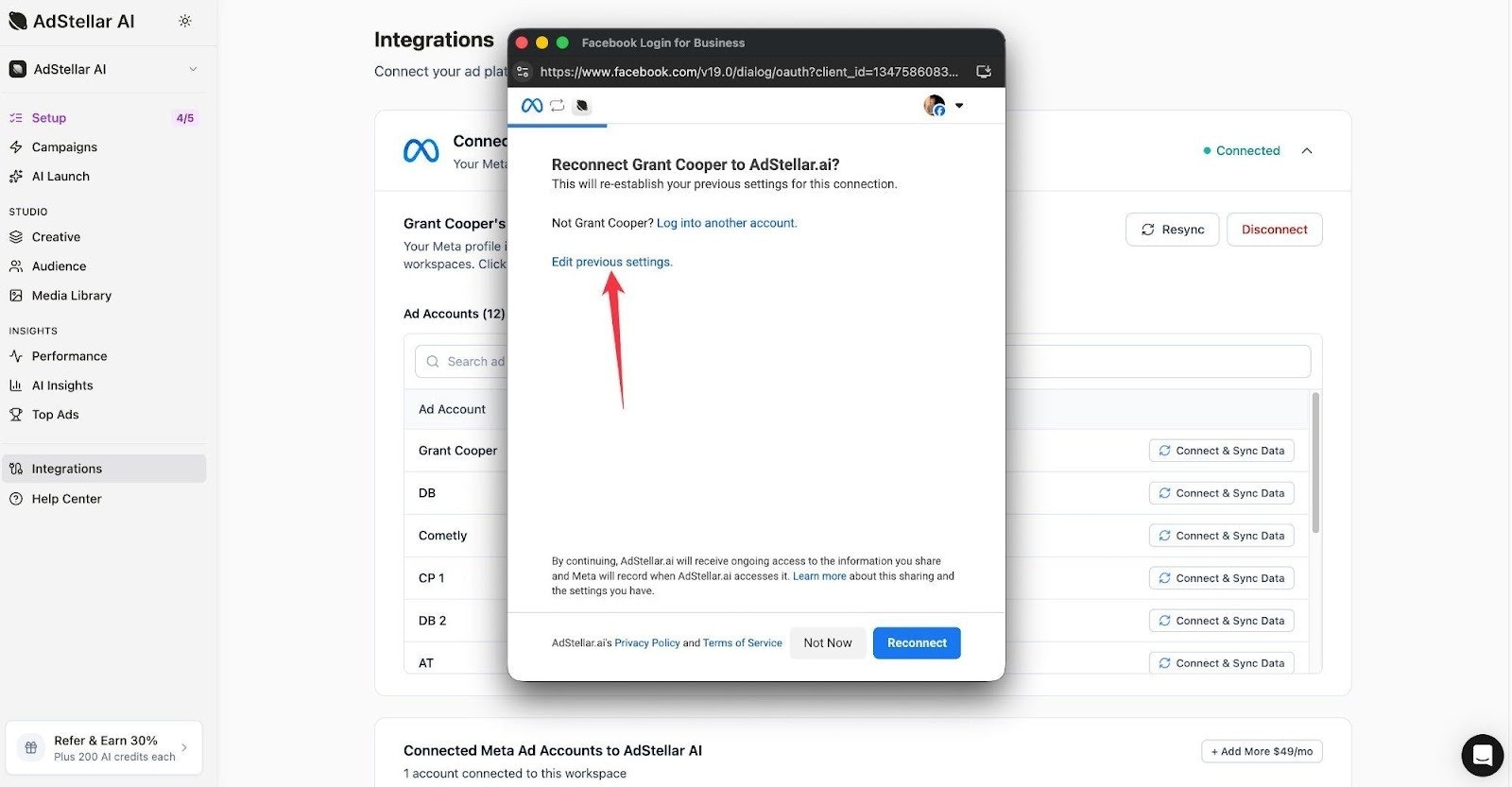
If you’ve previously connected your Meta account, you’ll see your profile listed with a Resync button. To update your permissions or reconnect, click Resync. A Facebook Login for Business window will appear. Click Edit previous settings to review and update the permissions AdStellar AI has access to, then click Reconnect.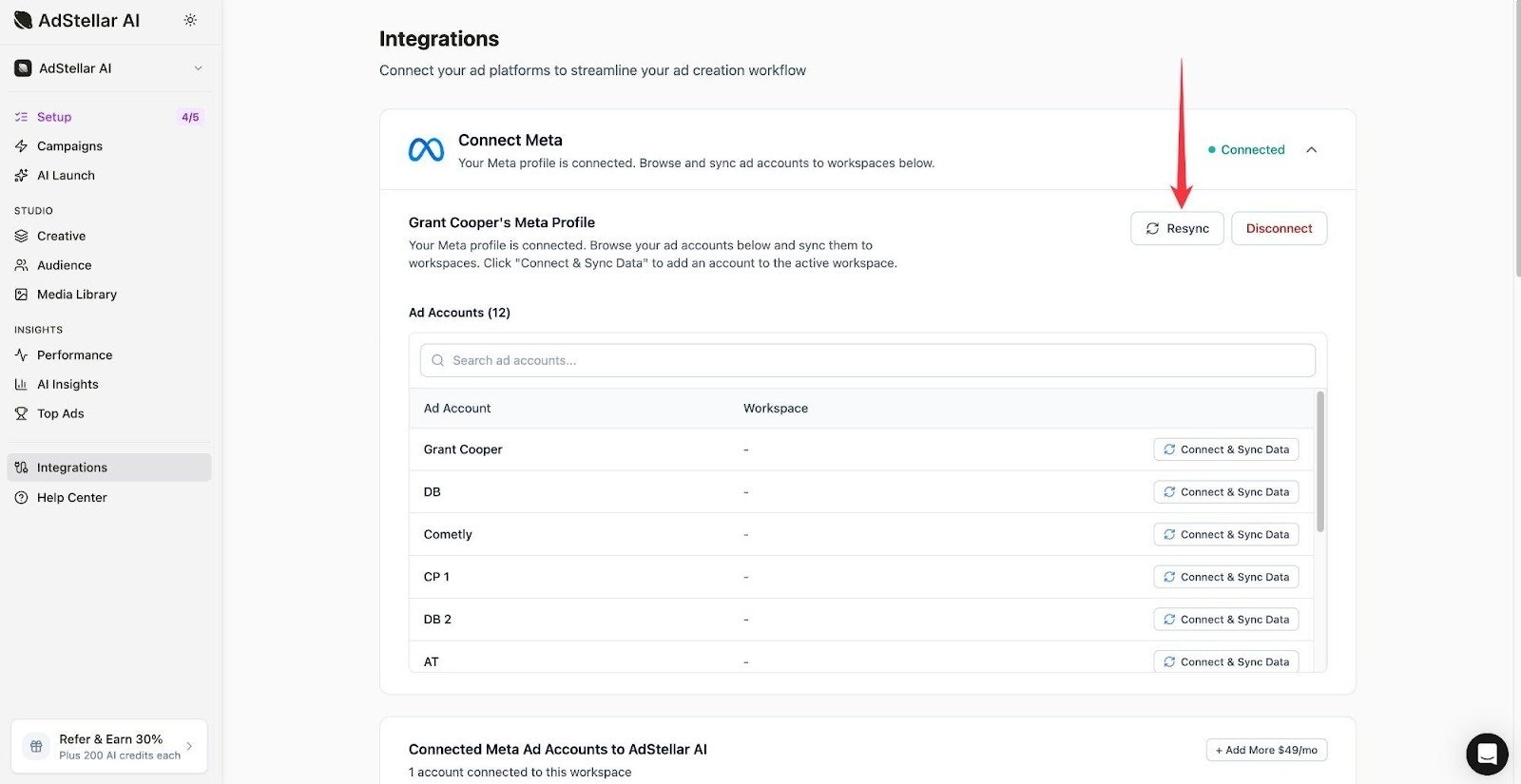
3
Grant Facebook Page Access
You’ll be asked to choose which Facebook Pages AdStellar AI can access. Select Opt in to all current and future Pages to ensure AdStellar AI can work with any Pages you manage now or create later. Then click Continue.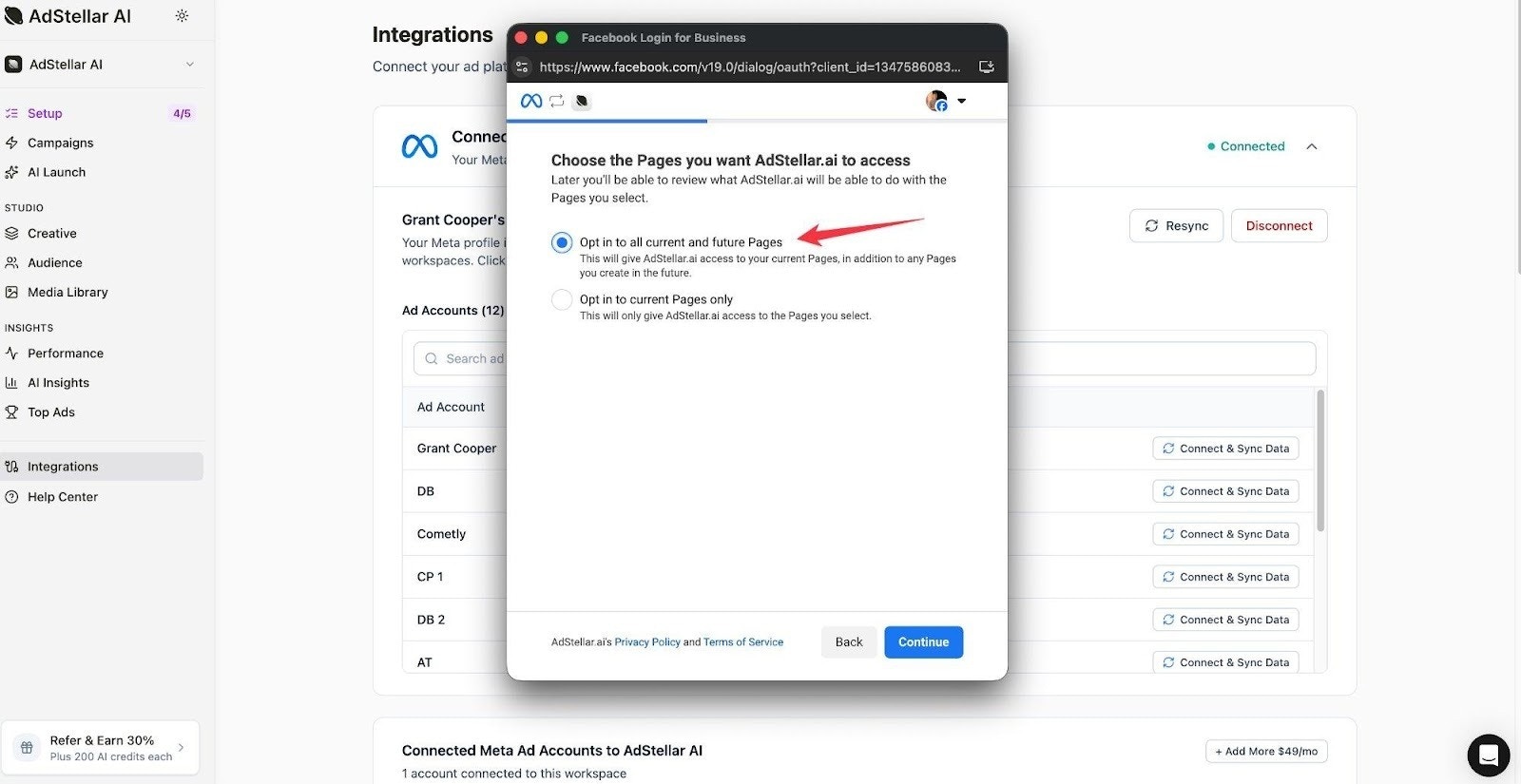
This step is required. AdStellar AI needs Facebook Page permissions to create and manage ads on your behalf.
4
Grant Instagram Account Access
Next, you’ll be asked to choose which Instagram accounts AdStellar AI can access. Select Opt in to all current and future Instagram accounts for the smoothest experience, then click Continue.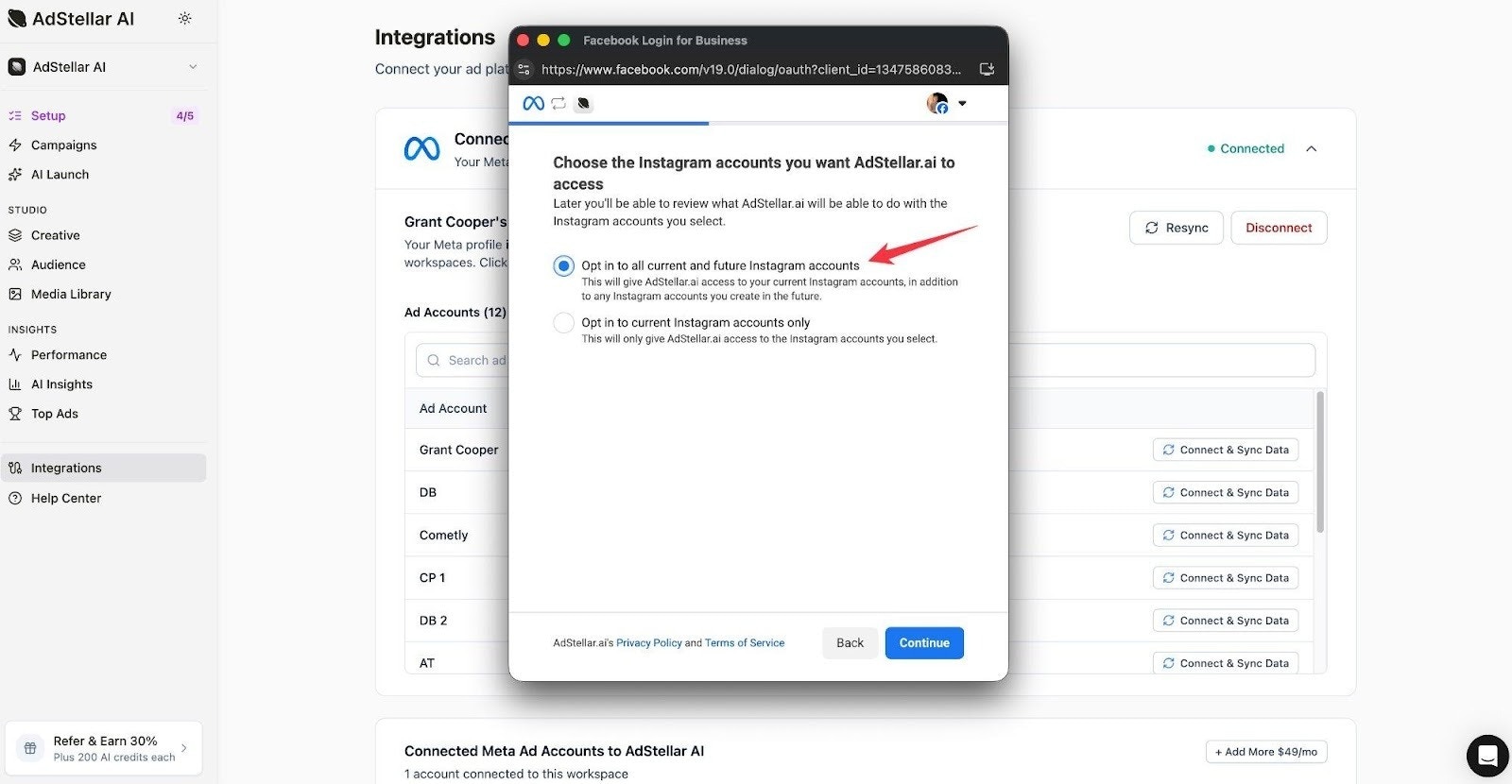
5
Review Permissions and Save
You’ll see a summary of all the permissions AdStellar AI is requesting. Review the list to make sure it includes access to your ad accounts, Facebook Pages, and Instagram accounts. Once you’re satisfied, click Save to complete the connection.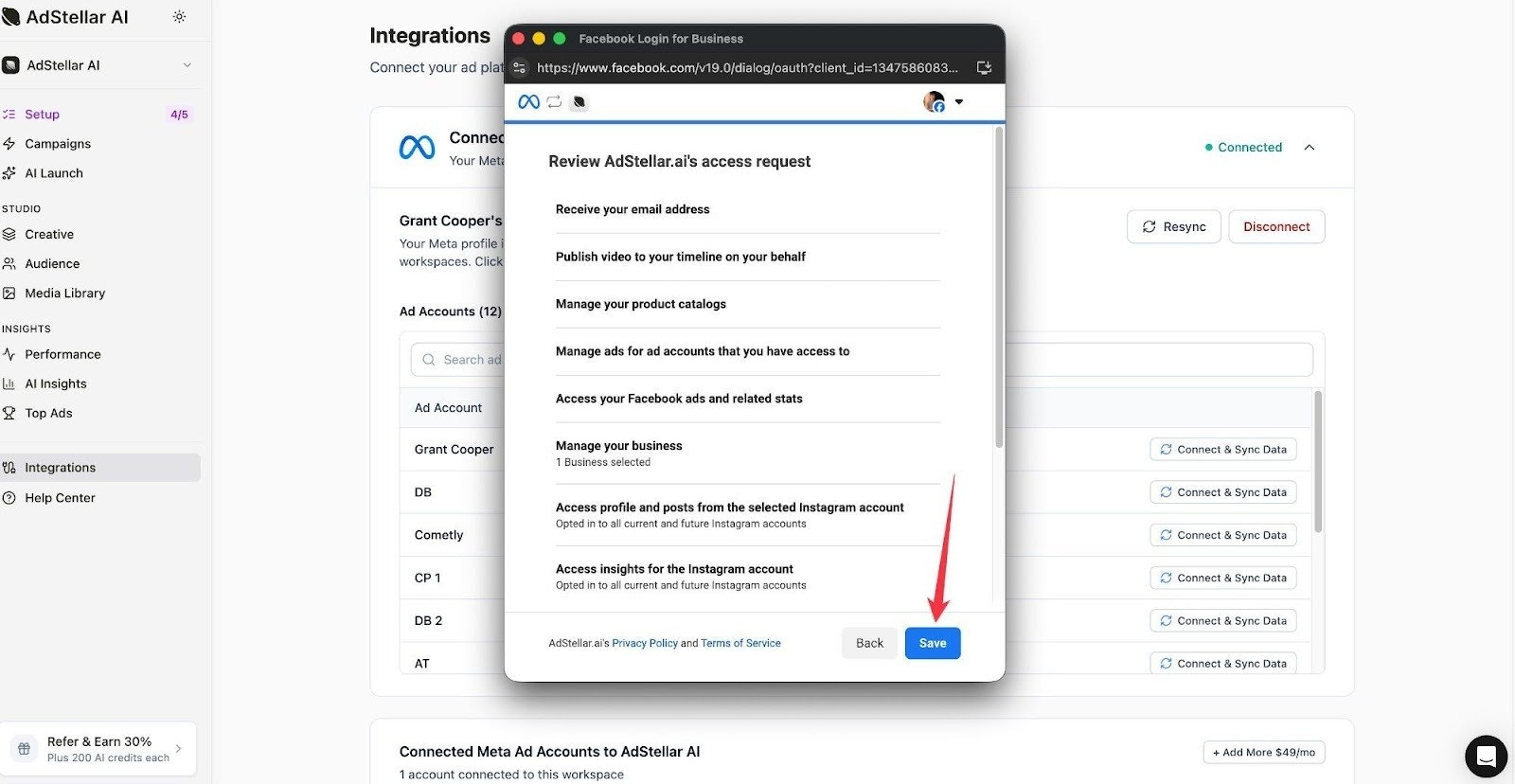
6
Connect and Sync Your Ad Account
After completing the Facebook authorization, you’ll be returned to the AdStellar AI Meta integration page. You should now see your ad accounts listed. Find the ad account you want to use and click Connect & Sync Data to add it to your workspace. This syncs your ad account data into AdStellar AI so you can start building and launching campaigns.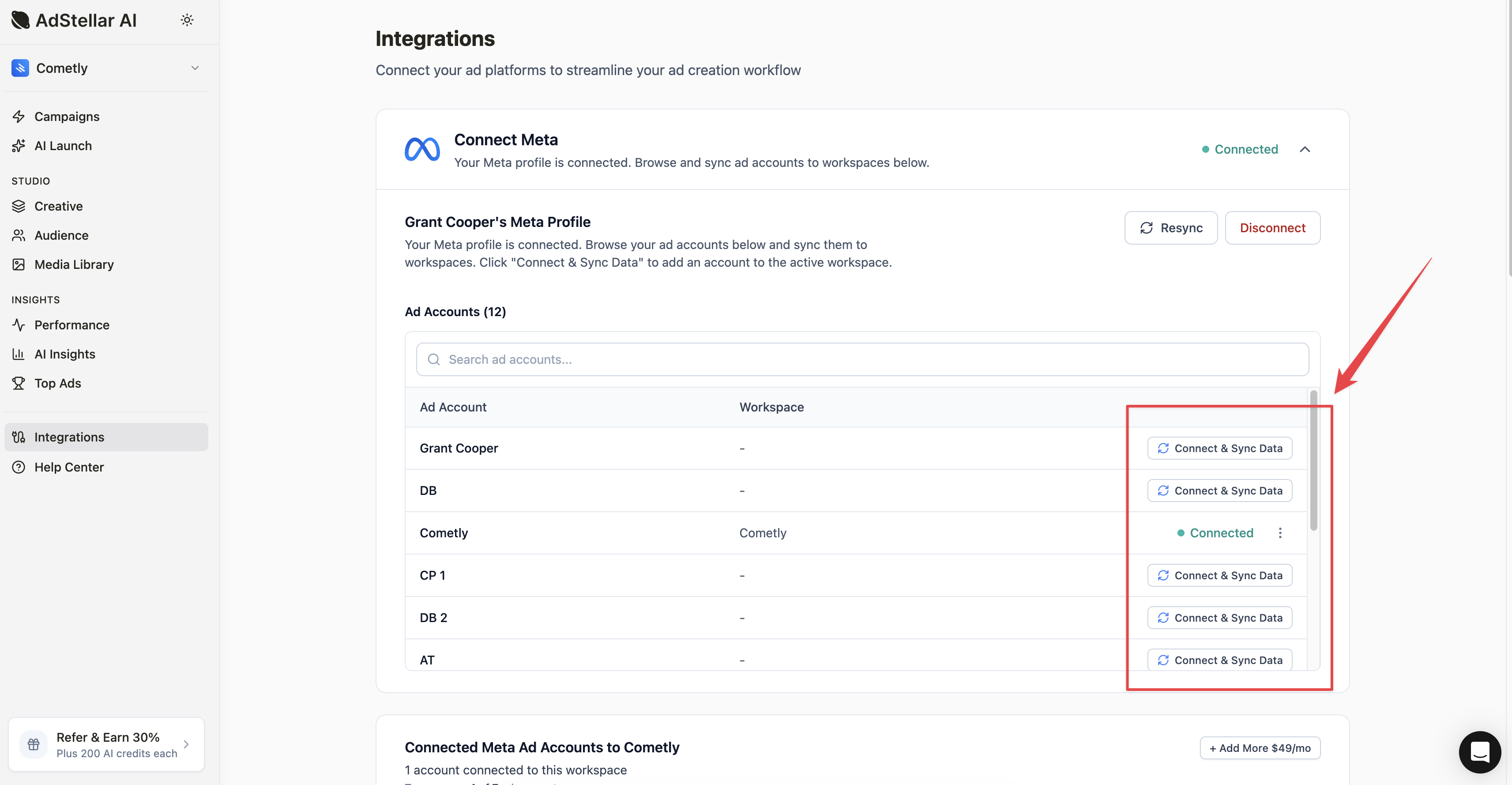
Troubleshooting
If you’re experiencing issues with your Meta connection, here are a few things to check:- Campaigns failing to launch? Make sure you granted both ad account and Facebook Page permissions during the Meta authorization. You can fix this by clicking Resync on the Meta integration page (Integrations → Meta) and going through the “Edit previous settings” flow to update your permissions.
- Don’t see your ad account? Click Resync to refresh the list of available ad accounts. Make sure the Facebook profile you connected has admin or advertiser access to the ad account in Meta Business Suite.
- Need to switch Meta profiles? Click Disconnect on the Meta integration page, then reconnect with the correct Facebook profile using “Sign in with Facebook.”
- No Facebook Pages found for your ad account? This happens when Page permissions weren’t granted during setup. Click Resync and select “Opt in to all current and future Pages” during the Facebook authorization. Your ad account must also be linked to a Page in Meta Business Manager.
- Wrong Facebook Page showing? Make sure the correct Page is associated with your ad account in Meta Business Manager > Business Settings > Pages. AdStellar shows Pages linked to the ad account you selected.
- Instagram account required? Some ad placements require an Instagram account. If you don’t have one, you can either create one in Instagram or remove Instagram placements from your campaign in the Ad Sets step.
- Meta created a new ad account instead of connecting my existing one? During the Facebook authorization, make sure you select your existing ad accounts — don’t let Meta create a new one. If this happened, disconnect and reconnect, carefully selecting the correct accounts.
- Multiple ad accounts showing different currencies? Each Meta ad account has a fixed currency set at creation. AdStellar shows the currency from Meta. You cannot change an ad account’s currency after creation — this is a Meta limitation.
- Workspace must be created first? You need at least one workspace before connecting ad accounts. If you see this message, go to Settings > Workspaces and create a workspace first, then return to the Meta integration.