

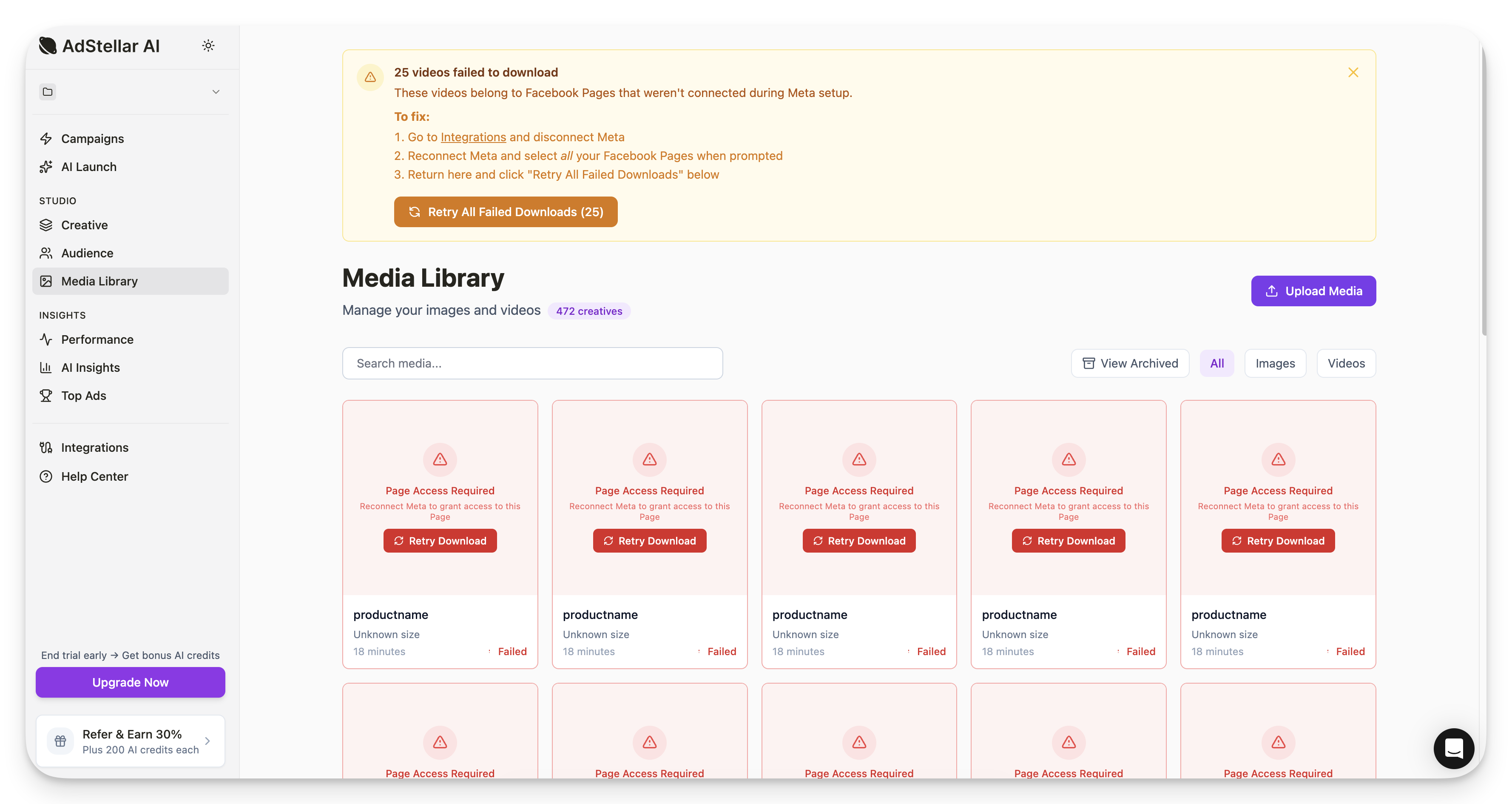
Why does this happen?
Videos in Meta ads are owned by Facebook Pages and have stricter access controls than images. When you connect your Meta account to AdStellar, you choose which Facebook Pages to grant access to. If a campaign uses videos from a Page you didn’t select during setup, AdStellar can’t download those videos.This only affects videos, not images. Images will always download successfully.
- You manage multiple Facebook Pages but only selected one during Meta setup
- Your ads use videos posted to a different Page than you connected
- You skipped the Page selection step during Meta authorization
How to fix failed video downloads
1
Reconnect Meta with all your Pages
- Go to Settings > Integrations
- Click Resync next to your Meta connection
- In the Facebook authorization window, click “Edit previous settings”
- Select “Opt in to all current and future Pages”
- Save and complete the authorization
2
Retry the failed downloads
- Go to your Media Library
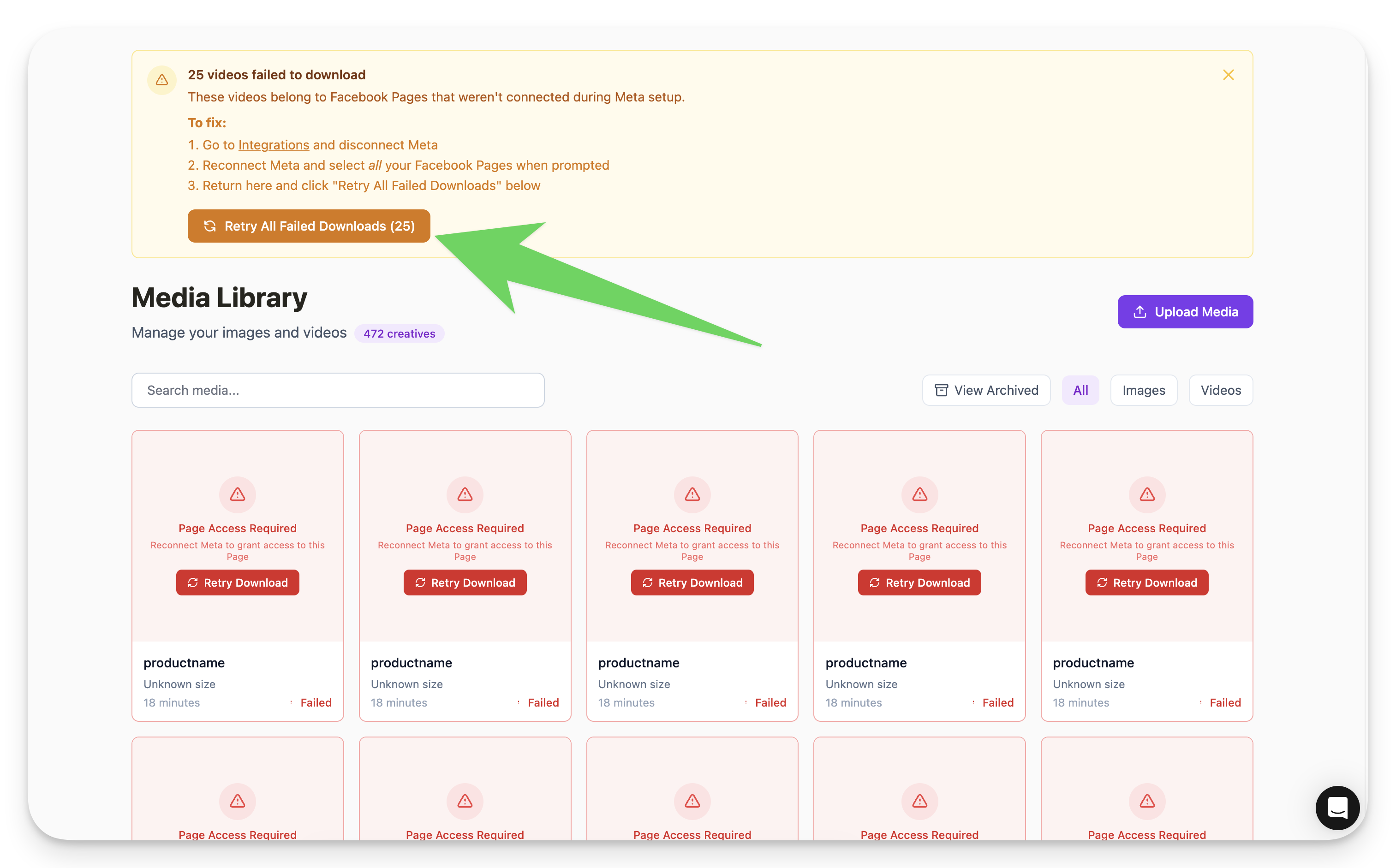
- Look for the “Failed Downloads” banner at the top
- Click “Retry All” to re-attempt all failed downloads
-
Wait for the downloads to complete — successfully downloaded videos will appear in your library
How to prevent this in the future
When connecting your Meta account, always select all Facebook Pages you manage — even if you think you won’t use them. This ensures AdStellar can access any videos your campaigns might use.Still having issues?
If videos still fail after reconnecting:- Make sure you’re an admin of the Facebook Page that owns the video
- Check that the video hasn’t been deleted from the original Page
- Contact us via chat and we’ll help troubleshoot