> ## Documentation Index
> Fetch the complete documentation index at: https://docs.adstellar.ai/llms.txt
> Use this file to discover all available pages before exploring further.
# Creating & Managing Workspaces
> Workspaces in AdStellar make it easy to organize campaigns, templates, media, and analytics across different clients, brands, or projects.
**Workspaces are unlimited on all plans** -- you can create as many as you need at no additional cost.
## What is a Workspace?
A workspace is an organizational container inside your AdStellar team. Think of it like a dedicated folder for a specific client or initiative. All content inside a workspace stays isolated, including:
* Campaigns
* Templates
* Media/creatives
* Performance data
* AI insights
### Common Use Cases
* **Agencies:** Create a workspace for each client
* **Brands:** Separate product lines, initiatives, or markets
* **Freelancers:** Organize client engagements cleanly
* **Teams:** Keep experiments, tests, and evergreen campaigns separated
***
## Accessing Workspaces
### Workspace Switcher (Sidebar)
Your active workspace is always shown at the **top of the left sidebar**.
To switch:
Click on the workspace name in the top of the left sidebar.
A dropdown will appear showing all your workspaces.
Click the workspace you want to switch to. The app will reload with data from the selected workspace.
The dropdown also includes a quick link to **Manage Workspaces**.
***
## Creating a Workspace
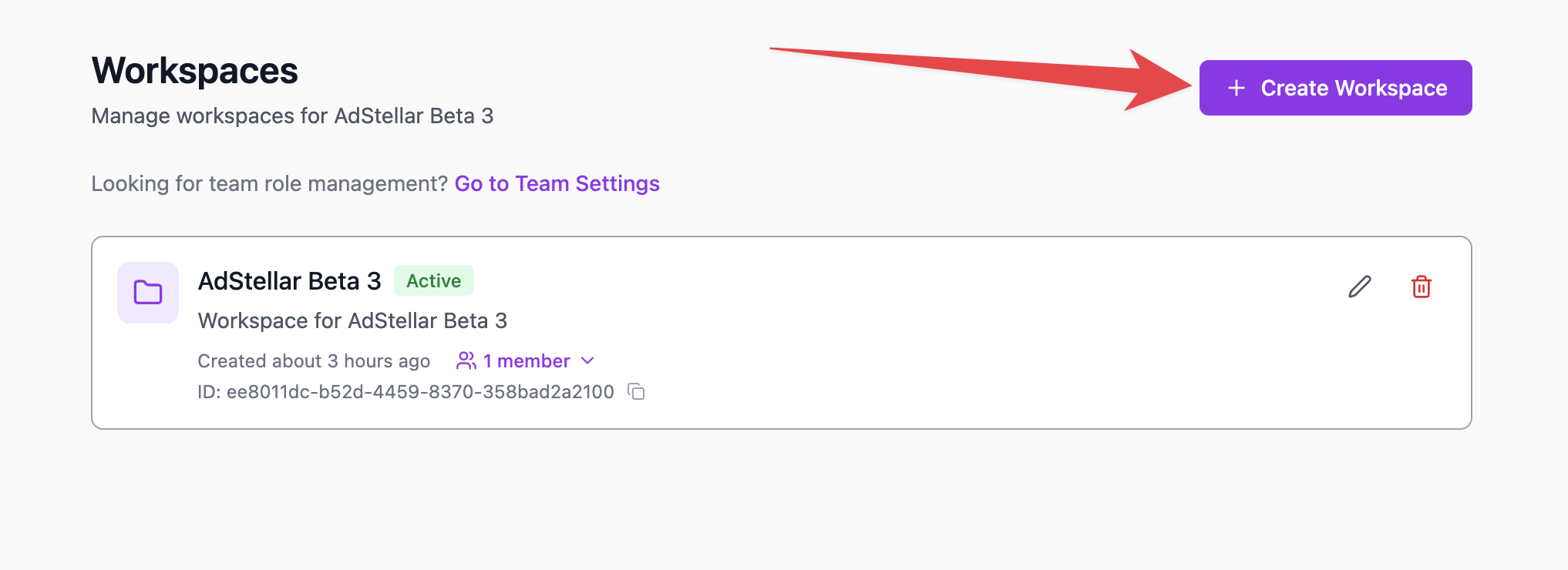
Click on the workspace switcher in the sidebar and select **Manage Workspaces**.
Click **Create Workspace** in the top right.
Configure your new workspace:
* **Icon** (optional)
* **Workspace Name** (required)
* **Description** (optional)
Click **Create Workspace**. You'll be automatically switched into the new workspace.
 ***
## Managing Workspaces
All workspace management occurs in **Manage Workspaces**, available in the app menu.
### Available Actions
| Action | Description |
| ------------ | ----------------------------------------------- |
| Switch | Make a workspace active |
| Edit | Change name, description, or icon |
| Delete | Soft-delete workspace (recoverable for 30 days) |
| View Members | Expand to see workspace members |
| Add Members | Add team members or invite new users |
The default workspace cannot be deleted.
***
## Workspace Members
Each workspace can have its own member list and permissions.
### Roles & Permissions
| Role | Permissions |
| ------ | ----------------------------------------------------- |
| Admin | Full control of workspace settings and content |
| Member | Can create and manage campaigns, templates, and media |
### Adding Members
Go to **Manage Workspaces** and expand the workspace.
Click **Add Member**.
Choose an existing team member or invite a new user by email. Select their workspace role (Admin or Member) and confirm.
### Removing Members
Go to **Manage Workspaces** and expand the workspace.
Click the remove button next to the member's name.
Choose whether to remove them from just the workspace or from the entire team.
If it's their only workspace, you can optionally remove them from the entire team.
### Team Admin Access
Team Owners and Team Admins automatically have access to every workspace.
***
## Data Isolation
Workspaces keep everything neatly separated:
| Data Type | Workspace-Isolated? |
| ----------------- | --------------------------------- |
| Campaigns | Yes |
| Templates | Yes (unless shared at team level) |
| Media / Creatives | Yes |
| Analytics | Yes |
| AI Insights | Yes |
**Shared across the team:**
* Team-level templates
* Connected Meta ad accounts
***
## Default Workspace
Every new team on AdStellar is created with a **Default Workspace**, which:
* Cannot be deleted
* Acts as a fallback for users
* Can be renamed or updated
***
## Workspace Permissions
| Action | Team Owner | Team Admin | Workspace Admin | Workspace Member |
| --------------------- | ---------- | ---------- | --------------- | ---------------- |
| Create workspaces | Yes | Yes | No | No |
| Delete workspaces | Yes | Yes | No | No |
| Edit settings | Yes | Yes | Yes | No |
| Add/remove members | Yes | Yes | Yes | No |
| Create campaigns | Yes | Yes | Yes | Yes |
| View analytics | Yes | Yes | Yes | Yes |
| Access all workspaces | Yes | Yes | No | No |
***
## FAQs
### Are workspaces limited by plan?
No -- all plans include unlimited workspaces.
### Can I move campaigns or templates to another workspace?
Not yet. Campaigns, media, and templates must be recreated in the target workspace.
### What happens when a workspace is deleted?
It becomes soft-deleted and can be restored by support for up to 30 days.
### Can one user belong to multiple workspaces?
Yes. Members can be added to as many workspaces as needed.
### Who can see all workspaces?
Team Owners and Team Admins see every workspace. Other members only see the ones they're added to.
***
## Need Help?
If you have questions about workspaces or team organization, our support team is here to help. Please contact us by clicking the icon in the bottom right of your screen.
***
## Managing Workspaces
All workspace management occurs in **Manage Workspaces**, available in the app menu.
### Available Actions
| Action | Description |
| ------------ | ----------------------------------------------- |
| Switch | Make a workspace active |
| Edit | Change name, description, or icon |
| Delete | Soft-delete workspace (recoverable for 30 days) |
| View Members | Expand to see workspace members |
| Add Members | Add team members or invite new users |
The default workspace cannot be deleted.
***
## Workspace Members
Each workspace can have its own member list and permissions.
### Roles & Permissions
| Role | Permissions |
| ------ | ----------------------------------------------------- |
| Admin | Full control of workspace settings and content |
| Member | Can create and manage campaigns, templates, and media |
### Adding Members
Go to **Manage Workspaces** and expand the workspace.
Click **Add Member**.
Choose an existing team member or invite a new user by email. Select their workspace role (Admin or Member) and confirm.
### Removing Members
Go to **Manage Workspaces** and expand the workspace.
Click the remove button next to the member's name.
Choose whether to remove them from just the workspace or from the entire team.
If it's their only workspace, you can optionally remove them from the entire team.
### Team Admin Access
Team Owners and Team Admins automatically have access to every workspace.
***
## Data Isolation
Workspaces keep everything neatly separated:
| Data Type | Workspace-Isolated? |
| ----------------- | --------------------------------- |
| Campaigns | Yes |
| Templates | Yes (unless shared at team level) |
| Media / Creatives | Yes |
| Analytics | Yes |
| AI Insights | Yes |
**Shared across the team:**
* Team-level templates
* Connected Meta ad accounts
***
## Default Workspace
Every new team on AdStellar is created with a **Default Workspace**, which:
* Cannot be deleted
* Acts as a fallback for users
* Can be renamed or updated
***
## Workspace Permissions
| Action | Team Owner | Team Admin | Workspace Admin | Workspace Member |
| --------------------- | ---------- | ---------- | --------------- | ---------------- |
| Create workspaces | Yes | Yes | No | No |
| Delete workspaces | Yes | Yes | No | No |
| Edit settings | Yes | Yes | Yes | No |
| Add/remove members | Yes | Yes | Yes | No |
| Create campaigns | Yes | Yes | Yes | Yes |
| View analytics | Yes | Yes | Yes | Yes |
| Access all workspaces | Yes | Yes | No | No |
***
## FAQs
### Are workspaces limited by plan?
No -- all plans include unlimited workspaces.
### Can I move campaigns or templates to another workspace?
Not yet. Campaigns, media, and templates must be recreated in the target workspace.
### What happens when a workspace is deleted?
It becomes soft-deleted and can be restored by support for up to 30 days.
### Can one user belong to multiple workspaces?
Yes. Members can be added to as many workspaces as needed.
### Who can see all workspaces?
Team Owners and Team Admins see every workspace. Other members only see the ones they're added to.
***
## Need Help?
If you have questions about workspaces or team organization, our support team is here to help. Please contact us by clicking the icon in the bottom right of your screen.