> ## Documentation Index
> Fetch the complete documentation index at: https://docs.adstellar.ai/llms.txt
> Use this file to discover all available pages before exploring further.
# How to Turn On Your Campaign
> After publishing from AdStellar, your campaign is toggled off by default. Turn it on from AdStellar's Performance page or in Meta Ads Manager.
When you publish a campaign from AdStellar, it is automatically imported into your Meta Ads Manager. However, your campaign and all of its ad sets and ads will be **toggled off by default**. This means your ads will not start running until you turn them on.
## Option 1: Turn On from AdStellar (Easiest)
Go to **Insights → Performance** in AdStellar. Every campaign, ad set, and ad has an on/off switch in the **Status** column — flip it to turn the item on. The change applies to Meta immediately.
Remember to turn on the campaign, its ad sets, and its ads — all levels must be on for your ads to deliver. [Learn more about Performance page controls →](/analytics/performance-dashboard)
## Option 2: Turn On in Meta Ads Manager
This guide will walk you through how to quickly turn on all of your ad sets and ads in bulk so your campaign can start delivering.
You will need to repeat this process twice -- once at the Ad Sets level and once at the Ads level. Both must be turned on for your ads to run.
## Step-by-Step Instructions
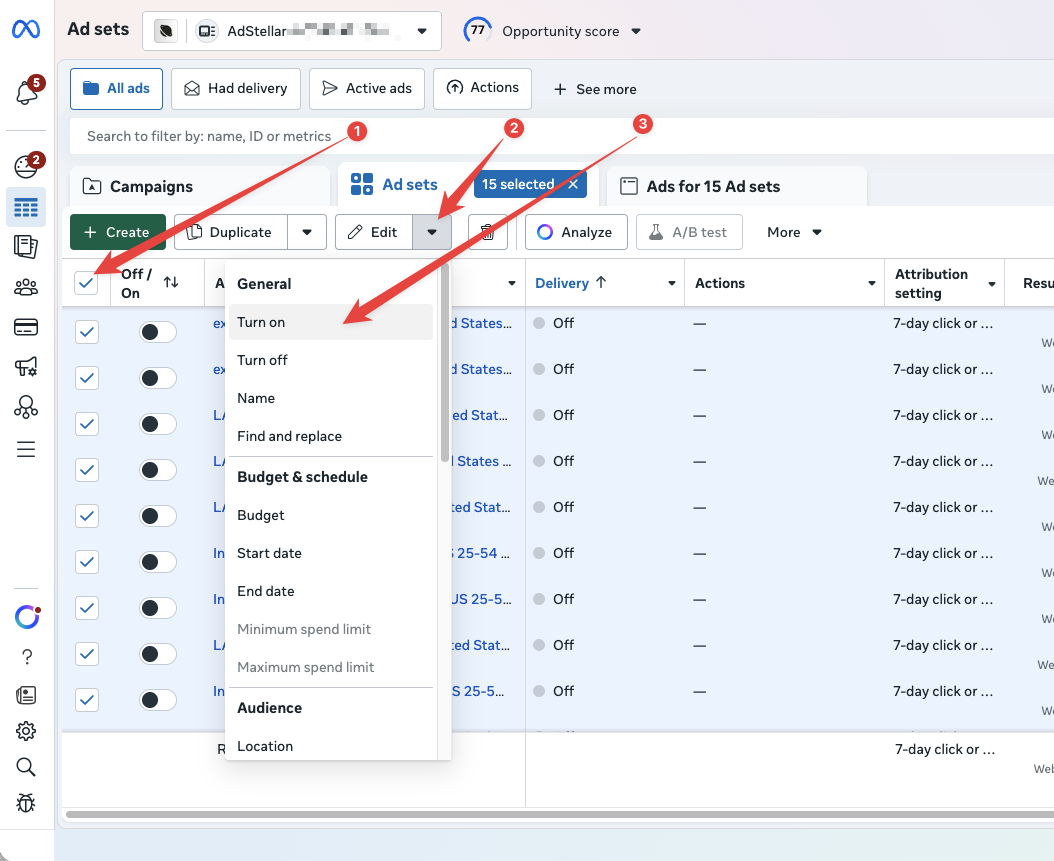
In Meta Ads Manager, navigate to the **Ad Sets** tab of your campaign. Click the master checkbox in the top-left corner of the table. This will select all of your ad sets at once.
With all ad sets selected, look for the **Edit** button in the toolbar. Click the small **down arrow** next to the Edit button to open a dropdown menu.
In the dropdown menu, click **Turn on**. This will turn on all of the selected ad sets at once.
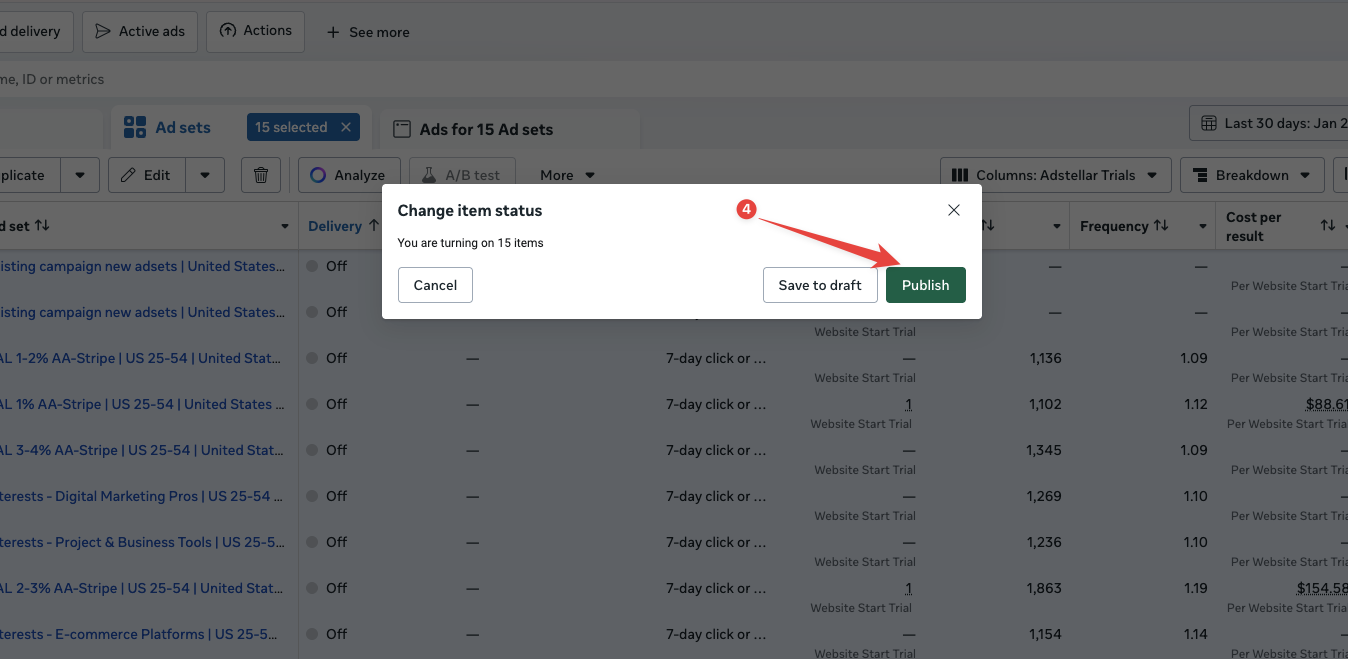
 A confirmation dialog will appear that says **"Change item status -- You are turning on 15 items"** (the number will match how many ad sets you selected). Click the green **Publish** button to confirm and apply the changes.
 ## Repeat for the Ads Level
After you have turned on all of your ad sets, you need to do the same thing at the **Ads** level. Click on the **Ads** tab in Meta Ads Manager and repeat the exact same steps:
1. Select all ads using the master checkbox
2. Open the Edit dropdown menu
3. Click "Turn On"
4. Click "Publish" to confirm
Once both your ad sets and ads are turned on and published, your campaign will begin delivering according to the schedule and budget you configured in AdStellar.
## Troubleshooting
* **My ads still say "Off" after publishing.** Make sure you have turned on items at both the Ad Sets level and the Ads level. If only one level is turned on, your ads will not deliver.
* **I don't see the Edit dropdown.** Make sure you have selected at least one item using the checkbox. The Edit button and its dropdown arrow only appear when items are selected.
* **I see "In Review" instead of "Active."** This is normal. After turning on your ads, Meta may take some time to review them before they start delivering. This typically takes less than 24 hours.
Need more help? Contact the AdStellar support team and we'll be happy to assist you.
## Repeat for the Ads Level
After you have turned on all of your ad sets, you need to do the same thing at the **Ads** level. Click on the **Ads** tab in Meta Ads Manager and repeat the exact same steps:
1. Select all ads using the master checkbox
2. Open the Edit dropdown menu
3. Click "Turn On"
4. Click "Publish" to confirm
Once both your ad sets and ads are turned on and published, your campaign will begin delivering according to the schedule and budget you configured in AdStellar.
## Troubleshooting
* **My ads still say "Off" after publishing.** Make sure you have turned on items at both the Ad Sets level and the Ads level. If only one level is turned on, your ads will not deliver.
* **I don't see the Edit dropdown.** Make sure you have selected at least one item using the checkbox. The Edit button and its dropdown arrow only appear when items are selected.
* **I see "In Review" instead of "Active."** This is normal. After turning on your ads, Meta may take some time to review them before they start delivering. This typically takes less than 24 hours.
Need more help? Contact the AdStellar support team and we'll be happy to assist you.