> ## Documentation Index
> Fetch the complete documentation index at: https://docs.adstellar.ai/llms.txt
> Use this file to discover all available pages before exploring further.
# Cometly Integration
> How to connect Cometly attribution data to AdStellar
[Cometly](https://www.cometly.com/?comet_custom=adstellar) is a server-side attribution platform that provides more accurate conversion data than traditional pixel-based tracking. Once connected, you can use Cometly's attribution data as your Results metric for campaign performance analysis and AI optimization.
## Before You Start
You'll need:
* An active [Cometly](https://www.cometly.com/?comet_custom=adstellar) account with data flowing
* Your Cometly API key (found in Cometly under Integrations > API)
* At least one Meta ad account connected to AdStellar
* Ads running that are being tracked by Cometly
***
## Connect Your Cometly Account
Navigate to **Settings** in the left sidebar.
Click the **Integrations** tab.
Locate the **Cometly** integration card.
Paste your Cometly API key into the input field.
Click **Connect** to validate the key.
Once validated, the card will expand to show configuration options.
 ***
## Configure Your Integration
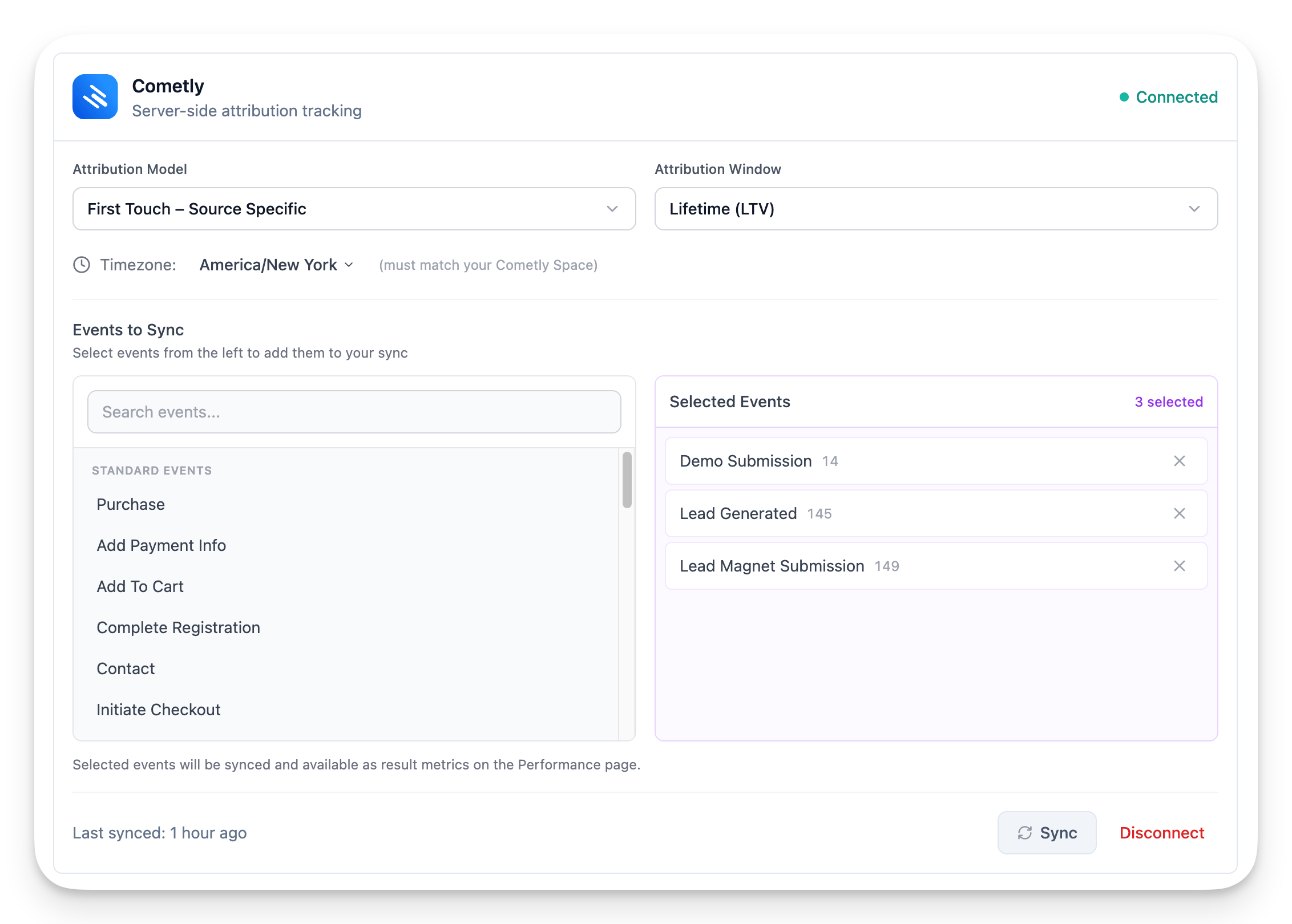
After connecting, configure these three settings before syncing.
### Attribution Model
Choose how credit is assigned to your ads for conversions:
* **First Touch -- Source Specific** (recommended): The first paid ad interaction gets full credit
* **Last Touch -- Source Specific**: The last paid ad interaction gets full credit
First Touch works best for most advertisers since it identifies which ads initiate customer journeys.
### Attribution Window
Define how long after an ad interaction a conversion can be credited:
* **Lifetime (LTV)** (recommended)
* 1 day, 7 days, 14 days, 30 days, 60 days, or 90 days
Lifetime attribution gives you the most complete picture, especially for products with longer sales cycles.
### Timezone
Select the timezone that matches your Cometly Space settings. This ensures dates convert correctly when syncing.
The timezone in AdStellar must match Cometly's Space timezone exactly, or data may be attributed to incorrect dates.
***
## Select Events to Sync
The Events to Sync section lets you choose which Cometly conversion events to bring into AdStellar.
Cometly tracks two types of events:
* **Standard events**: Purchase, Lead, Add to Cart, etc.
* **Custom events**: Events you've configured with custom names
To add an event, click it in the Available Events column to move it to Selected Events. To remove one, click the X next to it.
Only selected events will sync and become available as result metrics.
***
## Sync Your Data
After configuring settings and selecting events:
Click the **Sync** button on the Cometly integration card.
The sync may take a few minutes depending on your data volume.
The Last Synced timestamp updates once finished.
***
## Use Cometly as Your Result Metric
Once synced, you can set Cometly events as the result metric for any campaign.
Go to the **Performance** page for a campaign.
Click **Configure Results** (or the result metric dropdown).
Choose a Cometly event from the available metrics (e.g., Cometly Purchases).
Click **Update** to apply the new result metric.
A progress banner will appear while AdStellar backfills historical data. Once complete, the Results column shows your Cometly conversion data.
***
## Configure Your Integration
After connecting, configure these three settings before syncing.
### Attribution Model
Choose how credit is assigned to your ads for conversions:
* **First Touch -- Source Specific** (recommended): The first paid ad interaction gets full credit
* **Last Touch -- Source Specific**: The last paid ad interaction gets full credit
First Touch works best for most advertisers since it identifies which ads initiate customer journeys.
### Attribution Window
Define how long after an ad interaction a conversion can be credited:
* **Lifetime (LTV)** (recommended)
* 1 day, 7 days, 14 days, 30 days, 60 days, or 90 days
Lifetime attribution gives you the most complete picture, especially for products with longer sales cycles.
### Timezone
Select the timezone that matches your Cometly Space settings. This ensures dates convert correctly when syncing.
The timezone in AdStellar must match Cometly's Space timezone exactly, or data may be attributed to incorrect dates.
***
## Select Events to Sync
The Events to Sync section lets you choose which Cometly conversion events to bring into AdStellar.
Cometly tracks two types of events:
* **Standard events**: Purchase, Lead, Add to Cart, etc.
* **Custom events**: Events you've configured with custom names
To add an event, click it in the Available Events column to move it to Selected Events. To remove one, click the X next to it.
Only selected events will sync and become available as result metrics.
***
## Sync Your Data
After configuring settings and selecting events:
Click the **Sync** button on the Cometly integration card.
The sync may take a few minutes depending on your data volume.
The Last Synced timestamp updates once finished.
***
## Use Cometly as Your Result Metric
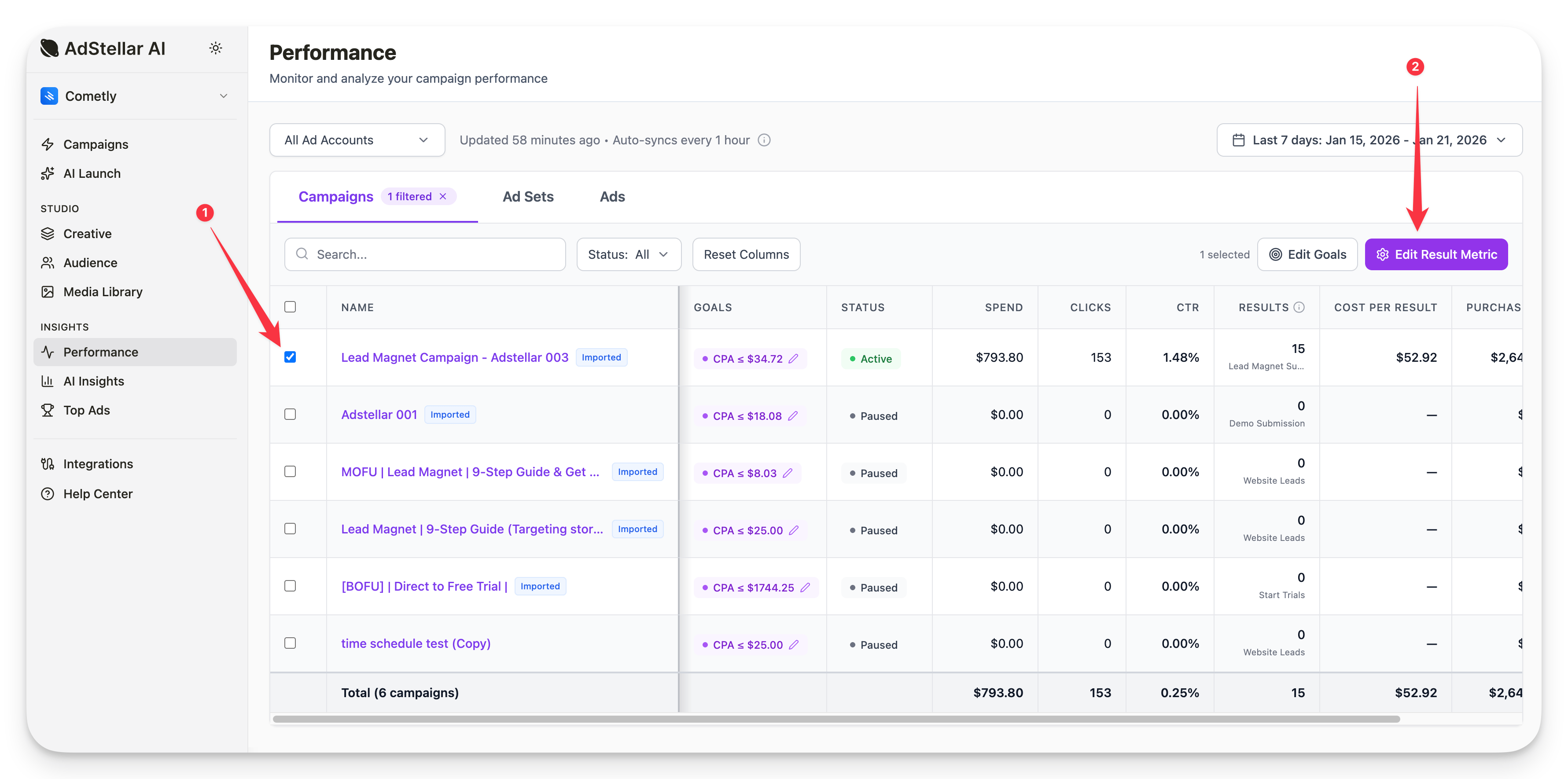
Once synced, you can set Cometly events as the result metric for any campaign.
Go to the **Performance** page for a campaign.
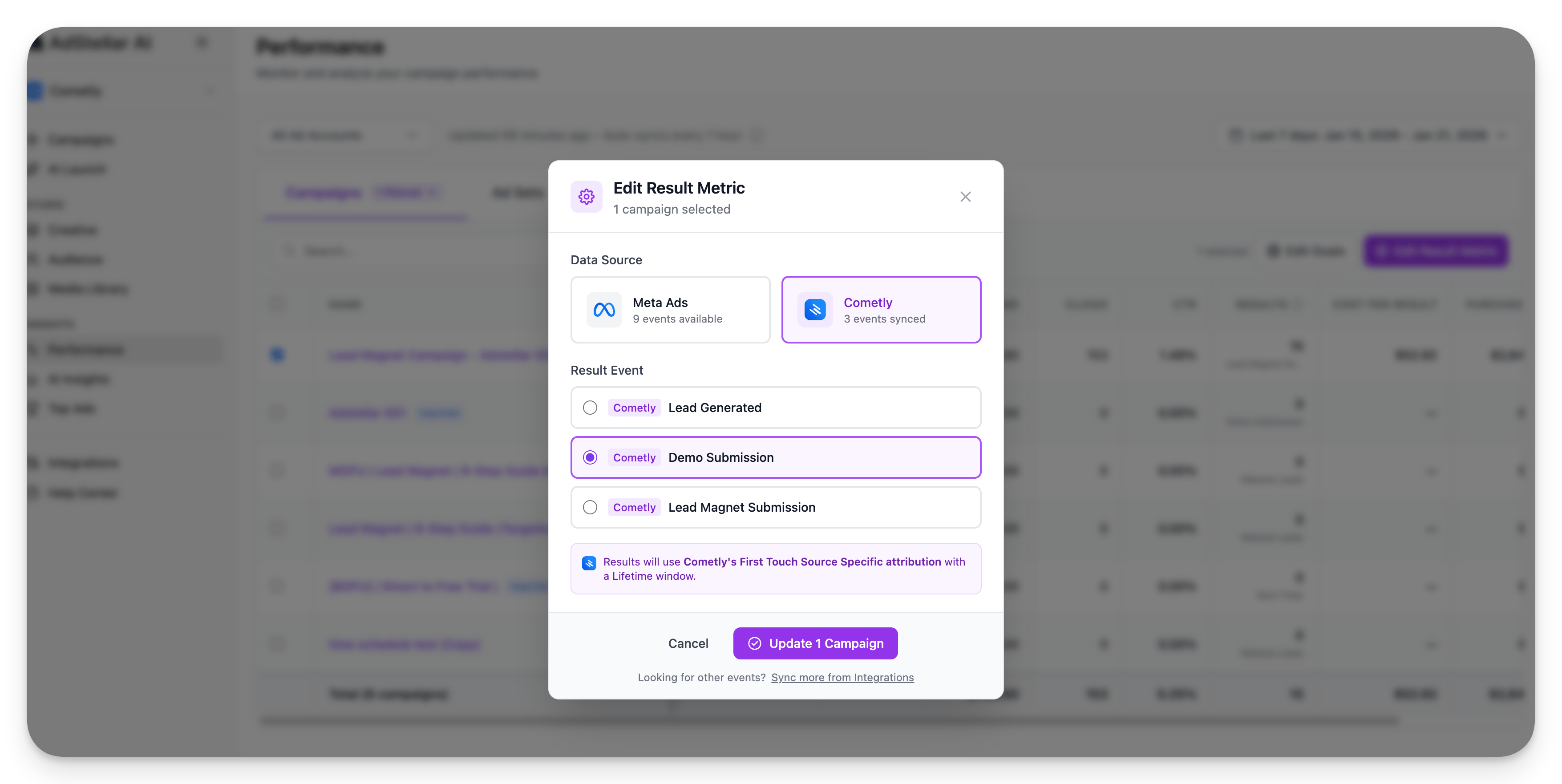
Click **Configure Results** (or the result metric dropdown).
Choose a Cometly event from the available metrics (e.g., Cometly Purchases).
Click **Update** to apply the new result metric.
A progress banner will appear while AdStellar backfills historical data. Once complete, the Results column shows your Cometly conversion data.
 ***
## Automatic Sync Frequency
Cometly data syncs automatically **every hour** on every plan.
You can trigger a manual sync anytime from Settings > Integrations by clicking **Sync** on the Cometly card.
***
## Troubleshooting
**No events found when selecting events to sync**
Your Cometly account may not have conversion events yet, or data hasn't started flowing. Verify your Cometly setup and ensure ads are running with tracking enabled.
**Sync fails or shows an error**
Your API key may have expired or been revoked. Check it's still valid in Cometly, wait a few minutes, and try again.
**Cometly events not appearing in Configure Results**
Make sure you've selected events to sync in the integration settings and that the initial sync has completed.
**Result counts don't match Cometly dashboard**
Check that your attribution model, window, and timezone settings match between AdStellar and your Cometly Space.
**Data isn't updating**
Verify your subscription is active (paused subscriptions don't sync) and check your plan's sync frequency.
***
## Need Help?
Contact our support team at **[support@adstellar.ai](mailto:support@adstellar.ai)** or use the chat icon in the bottom right corner. Include your workspace name, any error messages, and screenshots of your settings.
***
## Automatic Sync Frequency
Cometly data syncs automatically **every hour** on every plan.
You can trigger a manual sync anytime from Settings > Integrations by clicking **Sync** on the Cometly card.
***
## Troubleshooting
**No events found when selecting events to sync**
Your Cometly account may not have conversion events yet, or data hasn't started flowing. Verify your Cometly setup and ensure ads are running with tracking enabled.
**Sync fails or shows an error**
Your API key may have expired or been revoked. Check it's still valid in Cometly, wait a few minutes, and try again.
**Cometly events not appearing in Configure Results**
Make sure you've selected events to sync in the integration settings and that the initial sync has completed.
**Result counts don't match Cometly dashboard**
Check that your attribution model, window, and timezone settings match between AdStellar and your Cometly Space.
**Data isn't updating**
Verify your subscription is active (paused subscriptions don't sync) and check your plan's sync frequency.
***
## Need Help?
Contact our support team at **[support@adstellar.ai](mailto:support@adstellar.ai)** or use the chat icon in the bottom right corner. Include your workspace name, any error messages, and screenshots of your settings.