> ## Documentation Index
> Fetch the complete documentation index at: https://docs.adstellar.ai/llms.txt
> Use this file to discover all available pages before exploring further.
# AI Insights: Analyzing Your Ad Performance
> How to use the AI Insights page inside of AdStellar AI.
Once you've connected your ad account, imported your campaigns, and set your campaign goals, you're ready to start using AdStellar's powerful analytics. This guide covers the AI Insights feature, which gives you visibility into your ad performance that you won't find in Meta Ads Manager or any other platform.
## The Performance Page
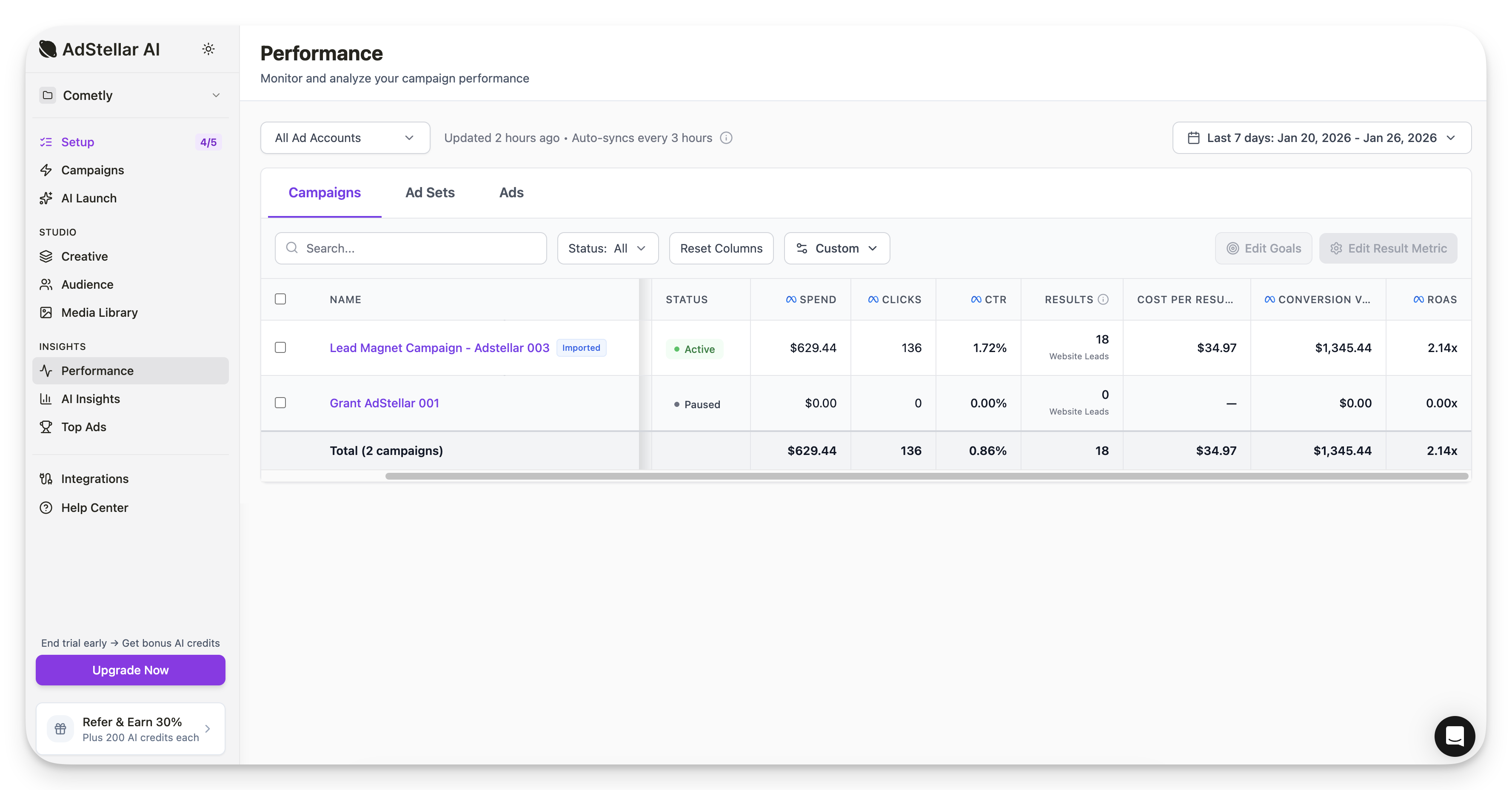
After importing your campaigns and setting goals, the Performance page displays your key metrics:
* **Results** (website leads, purchases, etc.)
* **Conversion value**
* **ROAS**
* All other data pulled directly from Meta
This page serves primarily as a verification tool to confirm your data matches what you see in Meta. You don't need to use this as your main ads manager -- it's there to give you confidence that your data imported correctly.
 ## The AI Insights Page
This is where AdStellar truly differentiates itself. When you imported your campaign, you didn't just import raw data -- you imported audiences, headlines, creatives, copy, and everything else. AdStellar parses out each component of your ad campaign so you can analyze them individually.
### Analyzing Creatives
On the AI Insights page, select **Creative** to see performance data for each creative asset.
## The AI Insights Page
This is where AdStellar truly differentiates itself. When you imported your campaign, you didn't just import raw data -- you imported audiences, headlines, creatives, copy, and everything else. AdStellar parses out each component of your ad campaign so you can analyze them individually.
### Analyzing Creatives
On the AI Insights page, select **Creative** to see performance data for each creative asset.
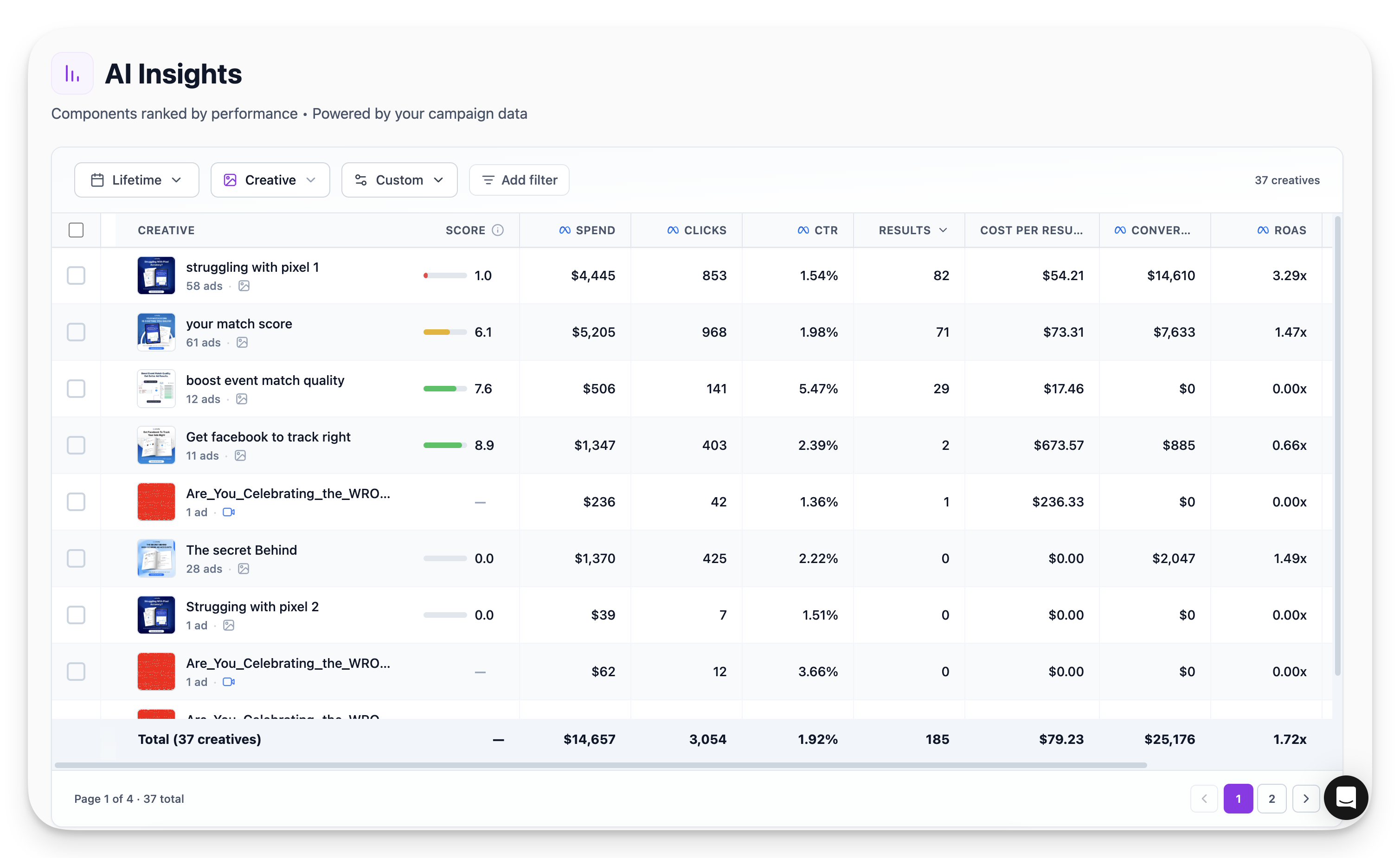 **Understanding the Score:** The score is based on the goal you set on the Performance page. If your goal is \$20 per result and your creatives are coming in above that, they'll show a lower score.
**Viewing Performance Over Time:**
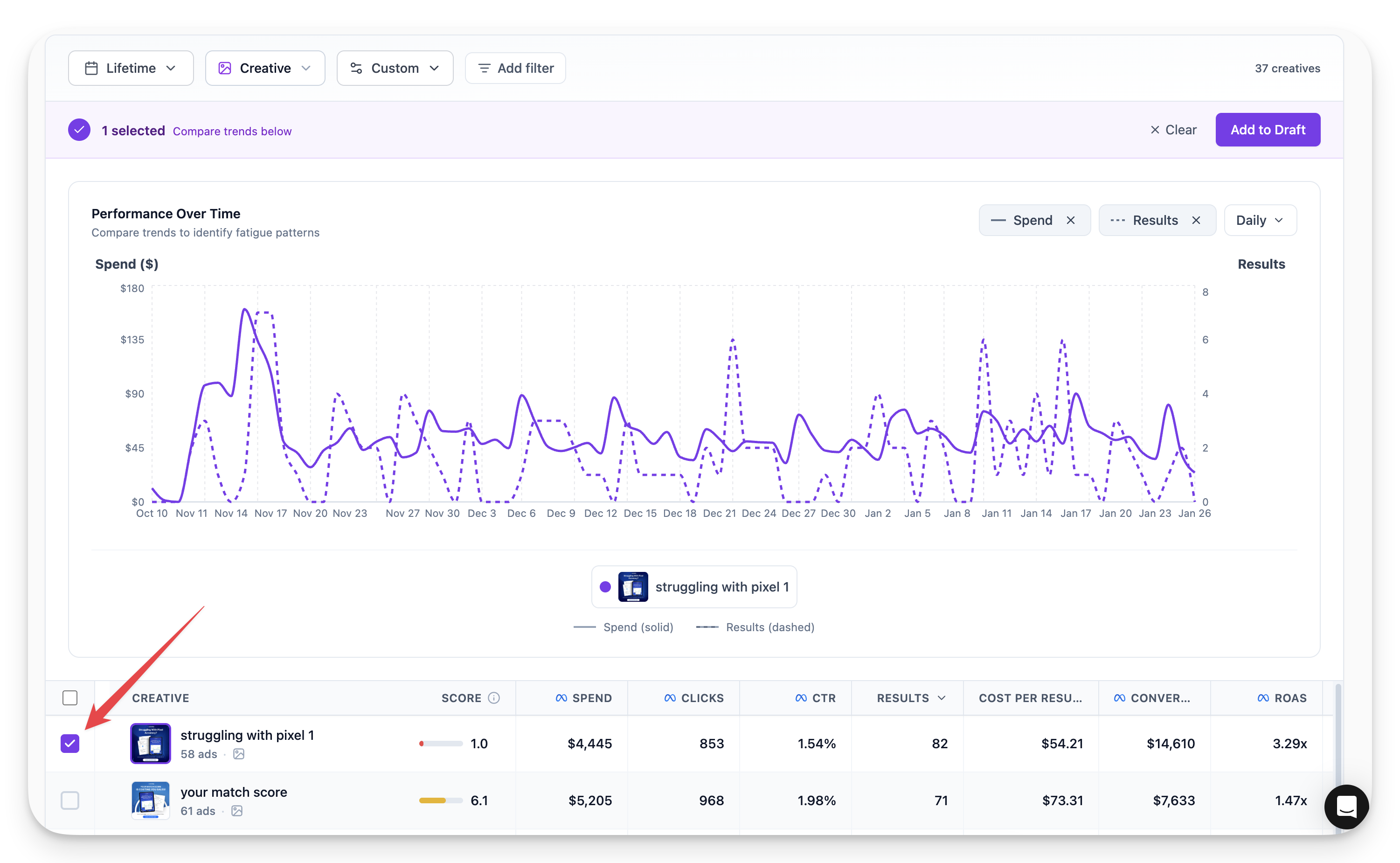
Click on any creative in the list to open its detailed performance view.
View the chart showing how key metrics (cost per result, results, spend) trend over your selected date range.
**Understanding the Score:** The score is based on the goal you set on the Performance page. If your goal is \$20 per result and your creatives are coming in above that, they'll show a lower score.
**Viewing Performance Over Time:**
Click on any creative in the list to open its detailed performance view.
View the chart showing how key metrics (cost per result, results, spend) trend over your selected date range.
 **Checking for Creative Fatigue:**
To determine if a creative is experiencing fatigue:
Click on the creative you want to evaluate.
Widen the date range to see longer-term performance trends.
Watch for a rising cost per result or declining results over time.
If the trend line shows consistent degradation, the creative is likely fatigued and should be refreshed or replaced.
### Analyzing Headlines
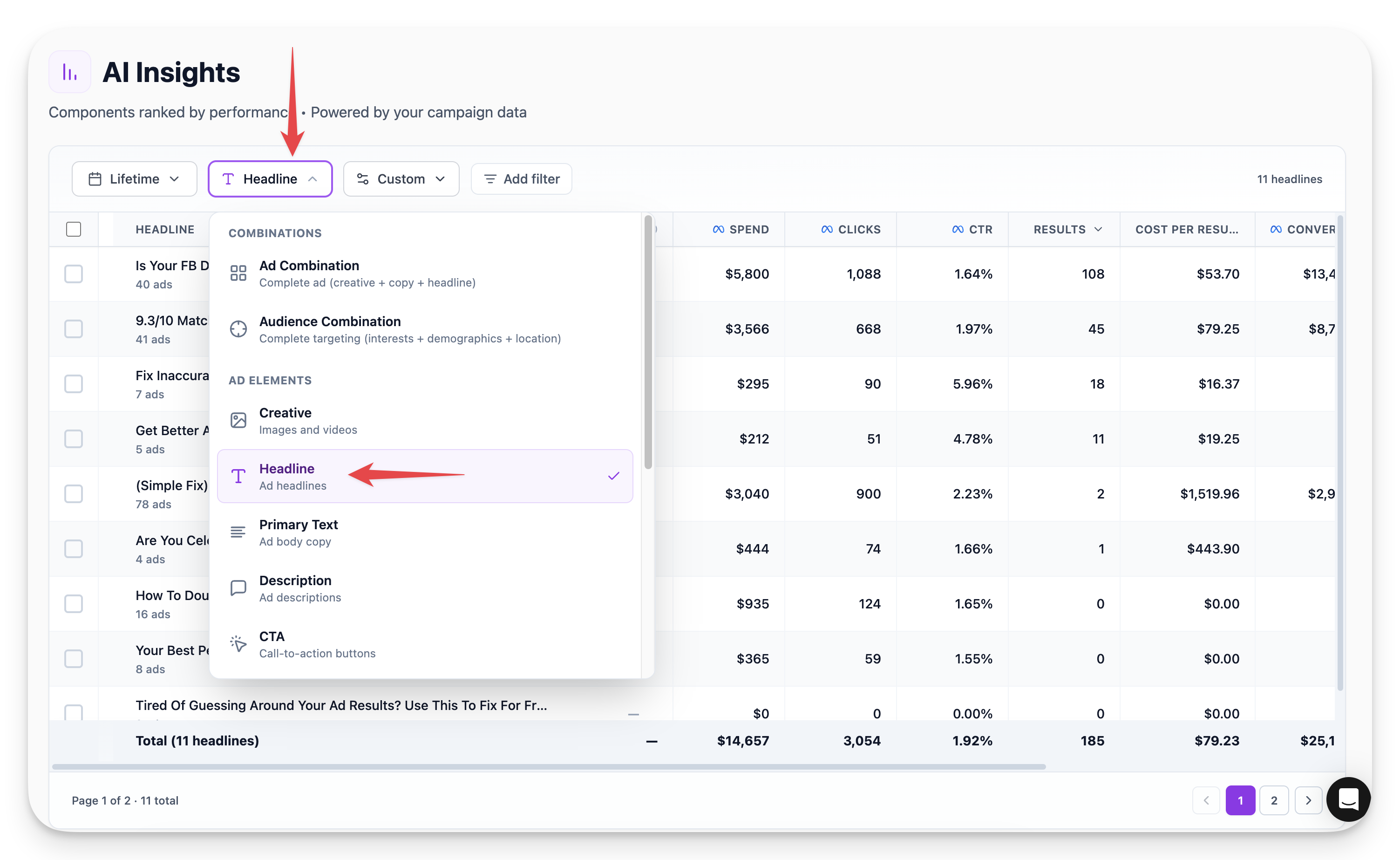
Switch to the **Headline** view to compare headline performance across your ads.
For example, you might see:
* Headline A: 59 results at \$39 cost per result, used on 8 ads
* Headline B: Better performance at \$26 cost per result, used on 7 ads
This makes it immediately clear which headline is winning and should be prioritized in future campaigns.
**Checking for Creative Fatigue:**
To determine if a creative is experiencing fatigue:
Click on the creative you want to evaluate.
Widen the date range to see longer-term performance trends.
Watch for a rising cost per result or declining results over time.
If the trend line shows consistent degradation, the creative is likely fatigued and should be refreshed or replaced.
### Analyzing Headlines
Switch to the **Headline** view to compare headline performance across your ads.
For example, you might see:
* Headline A: 59 results at \$39 cost per result, used on 8 ads
* Headline B: Better performance at \$26 cost per result, used on 7 ads
This makes it immediately clear which headline is winning and should be prioritized in future campaigns.
 ### Analyzing Ad Combinations
The **Ad Combination** view pulls everything together -- creative, headline, copy -- to show complete ad performance.
**Tips for using this view:**
* Sort by **Results** to see top performers
* Adjust the date range (e.g., last 30 days) for relevant data
* Click any combination to view its performance chart over time
* Select multiple ads for side-by-side comparison on the chart
**Card View:** Scroll down to access the Card View, which displays:
* Performance metrics and numbers
* The actual creative image/video
* Copy text
* Headline
### Analyzing Ad Combinations
The **Ad Combination** view pulls everything together -- creative, headline, copy -- to show complete ad performance.
**Tips for using this view:**
* Sort by **Results** to see top performers
* Adjust the date range (e.g., last 30 days) for relevant data
* Click any combination to view its performance chart over time
* Select multiple ads for side-by-side comparison on the chart
**Card View:** Scroll down to access the Card View, which displays:
* Performance metrics and numbers
* The actual creative image/video
* Copy text
* Headline
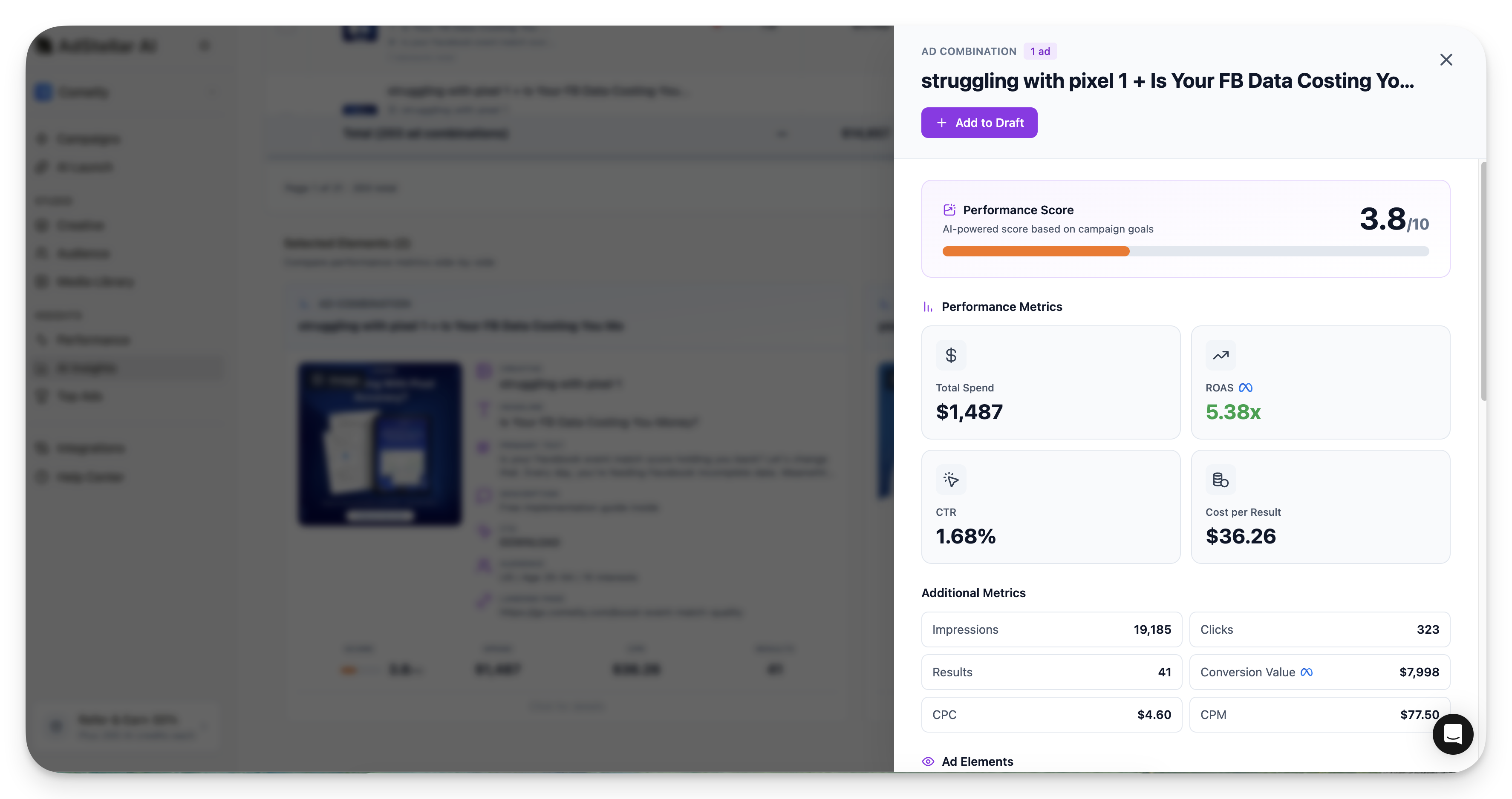
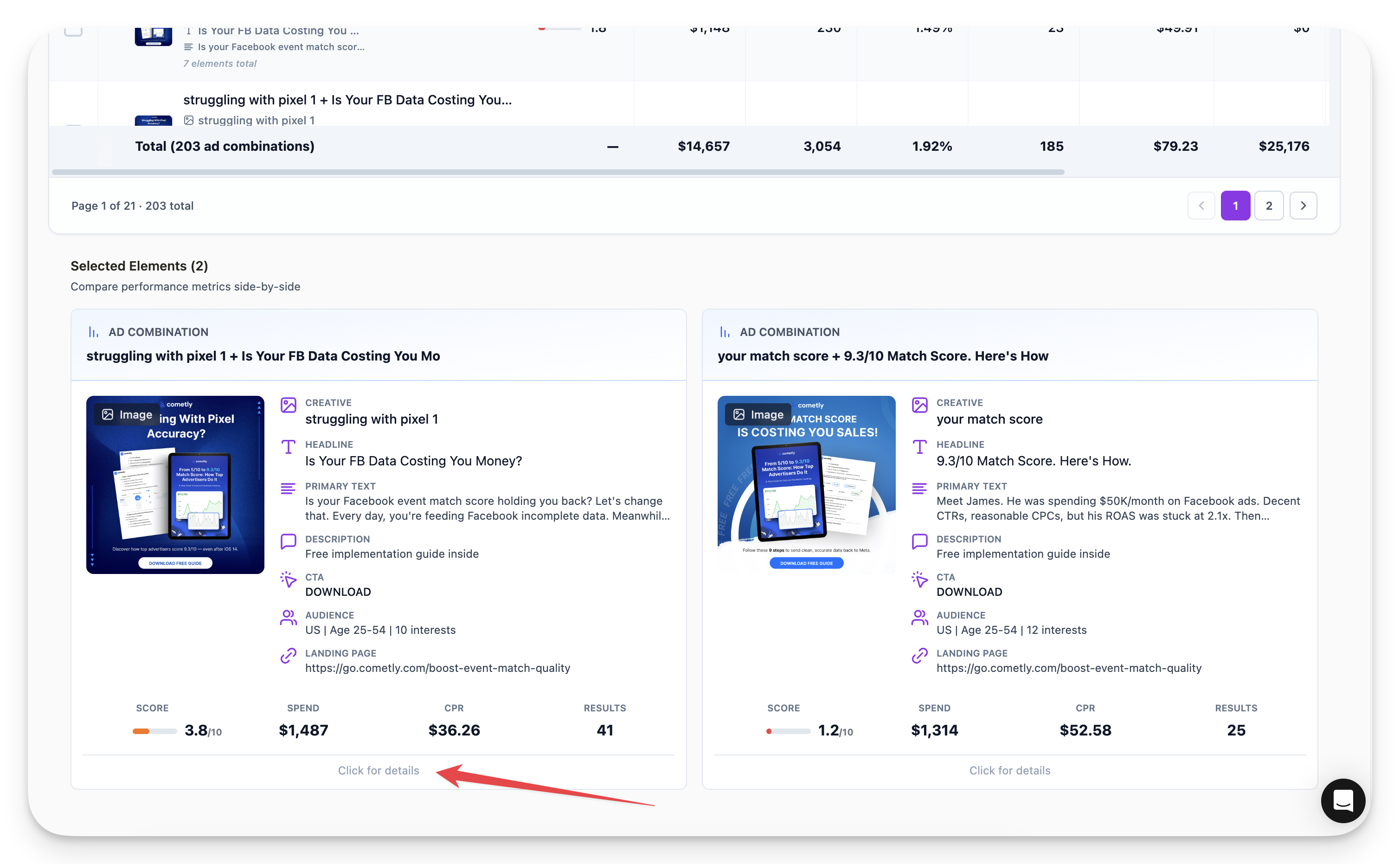 Click into any card to dive deeper into what's working for that specific ad combination.
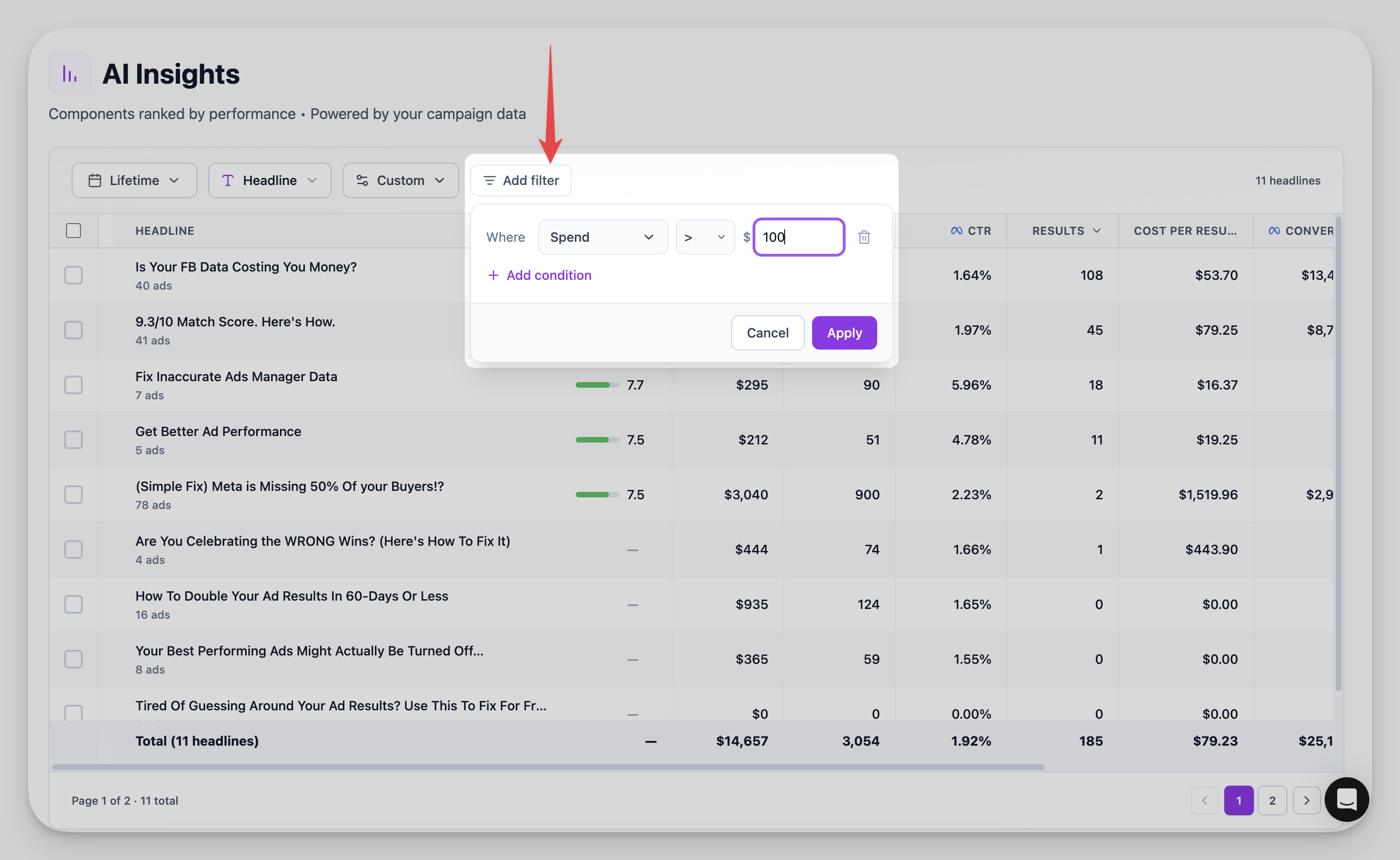
 ## Filtering and Customization
You can filter your data to focus on what matters most:
* Filter by minimum spend threshold to exclude low-data ads
* Customize columns to show the metrics you care about
* Use the various viewing options to analyze data in different ways
## Filtering and Customization
You can filter your data to focus on what matters most:
* Filter by minimum spend threshold to exclude low-data ads
* Customize columns to show the metrics you care about
* Use the various viewing options to analyze data in different ways
 ## How AI Insights Powers Your Future Campaigns
All the data visible on the AI Insights page feeds directly into AdStellar's AI engine. When you use the AI Launch feature, the system draws on these insights to make smarter ad combination decisions for your new campaigns.
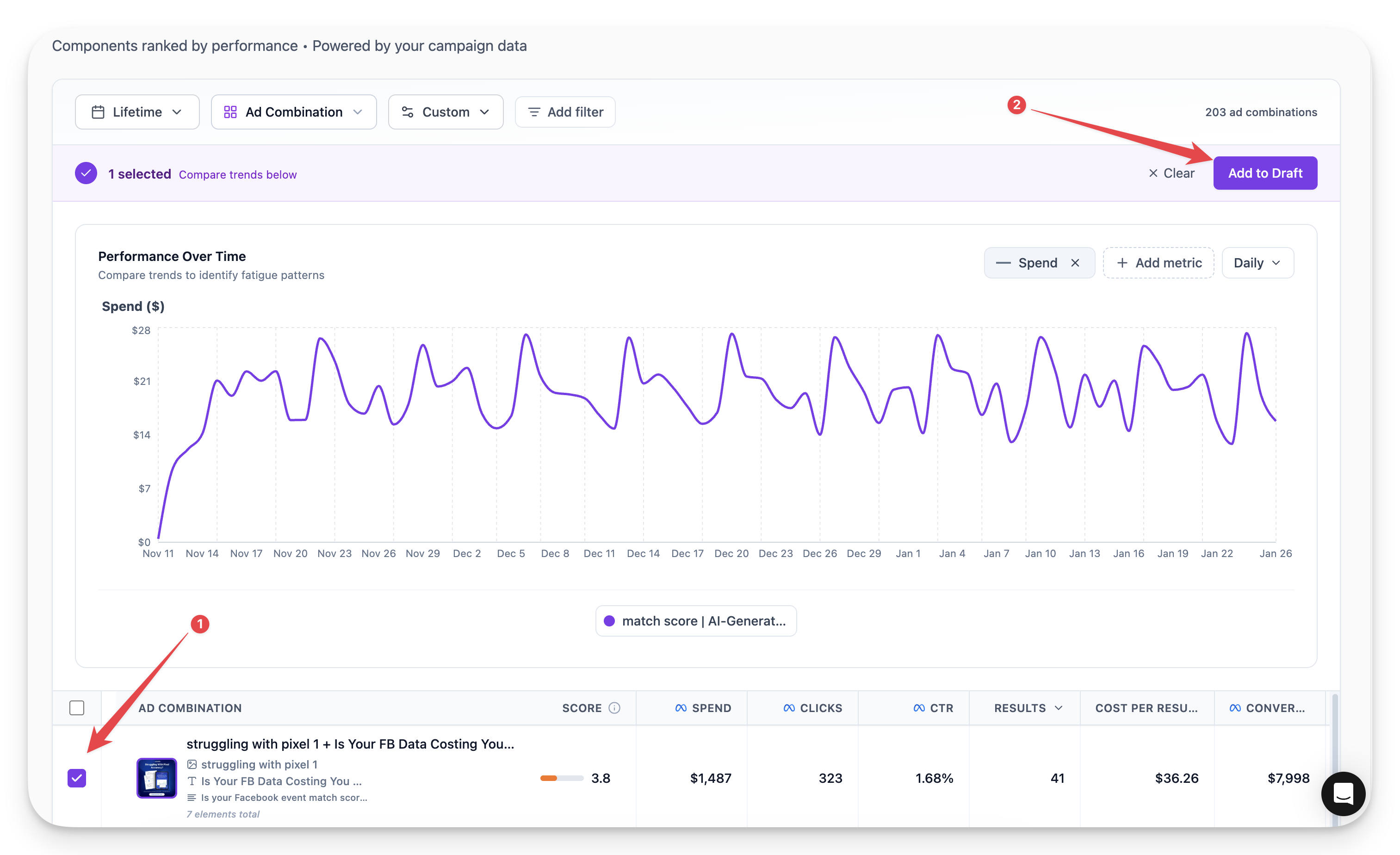
## Quick Tip: Add to Draft
When you find a top-performing ad combination you want to relaunch:
Click on the top-performing ad combination from any insights view.
Click the **Add to Draft** button to save the combination.
The combination is saved and ready to use in your next campaign via the launcher.
## How AI Insights Powers Your Future Campaigns
All the data visible on the AI Insights page feeds directly into AdStellar's AI engine. When you use the AI Launch feature, the system draws on these insights to make smarter ad combination decisions for your new campaigns.
## Quick Tip: Add to Draft
When you find a top-performing ad combination you want to relaunch:
Click on the top-performing ad combination from any insights view.
Click the **Add to Draft** button to save the combination.
The combination is saved and ready to use in your next campaign via the launcher.
 ***
Spend time exploring the AI Insights page and learning how to use each view. The insights you gain here will help you make smarter decisions about which creatives, headlines, and combinations to use in future campaigns.
***
Spend time exploring the AI Insights page and learning how to use each view. The insights you gain here will help you make smarter decisions about which creatives, headlines, and combinations to use in future campaigns.