> ## Documentation Index
> Fetch the complete documentation index at: https://docs.adstellar.ai/llms.txt
> Use this file to discover all available pages before exploring further.
# Use the Agent in Slack
> Run the full AdStellar Agent right inside Slack — mention @AdStellar in any channel or DM it to analyze performance, create ads, and launch or manage Meta campaigns.
The **[AdStellar Agent](/agent/overview)** works inside Slack, too. It's the same AI media buyer you use in the app — with every tool — reached by mentioning **@AdStellar** in any channel or sending it a direct message. Analyze performance, write copy, generate creative, and launch or manage Meta campaigns without leaving your team's workspace.
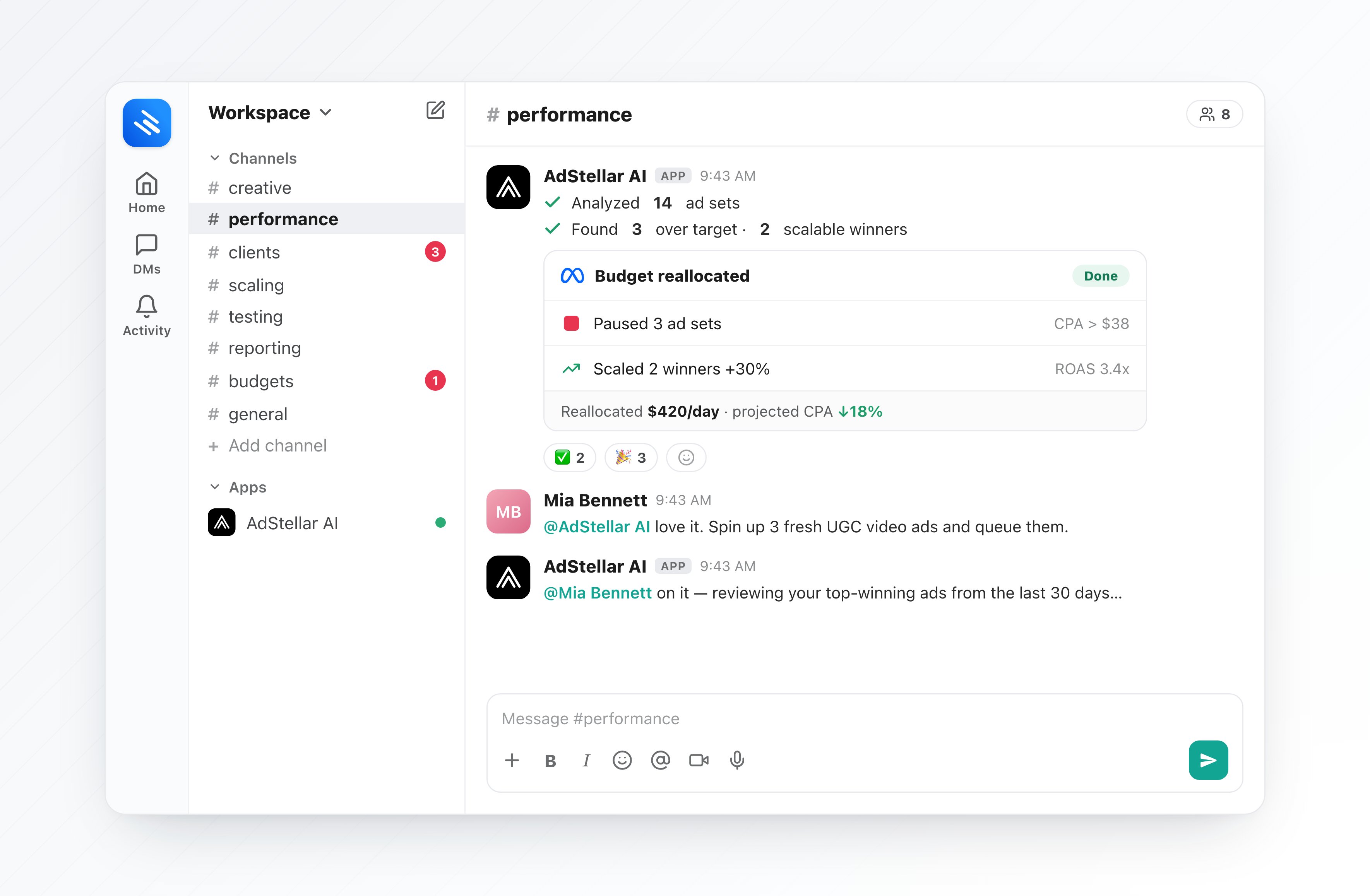 The Agent in Slack runs on **your own team and workspace data**, exactly like the in-app Agent. Anything it creates (images, videos, campaigns) shows up in your AdStellar projects, media library, and campaigns just like work you do by hand.
## Connect Slack
Connecting Slack is a one-time, **team-level** step (usually done by a team owner or admin).
In AdStellar, click **Integrations** in the left sidebar and open the **Slack** card.
Click **Connect Slack** and approve the permissions on Slack's authorization screen.
You'll be asked which AdStellar **workspaces** the bot may act in and which one is your **default**. This is ideal for agencies — pick the exact set of client workspaces.
In any Slack channel, run `/invite @AdStellar`, or just open a direct message with the bot. You're ready to go.
## Talk to the Agent
Type `@AdStellar` followed by your request in a channel, or send the bot a direct message.
The bot reacts with ⏳ to acknowledge, runs the Agent, and replies **in a thread** — then swaps the reaction to ✅ when it's done.
Read-only answers (analysis, copy ideas) come straight back. Anything that spends credits or changes your account — launching, pausing, budget changes, image/video generation — shows **Confirm / Cancel** buttons first. Confirmed jobs run in the background and post their result back into the thread.
A few things to try:
```text theme={null}
@AdStellar how did my campaigns do in the last 7 days?
@AdStellar write 3 primary text options for my summer sale
@AdStellar pause the campaign called "Retargeting - Broad" (asks to confirm)
@AdStellar make a 15s UGC video for my product (asks to confirm)
```
Performance analysis and campaign management need a connected Meta ad account. If you haven't connected Meta yet, see [Connect Meta](/getting-started/connect-meta). Creative generation works without it.
## Pick the right workspace (agencies)
Each Slack **channel** can be bound to one AdStellar **workspace** (client), so the Agent always acts on the right account.
* Run `/adstellar workspace` in a channel to choose its workspace. If a channel has more than one allowed workspace, the bot will prompt you the first time you mention it there.
* DMs and any channel without a binding use the install's **default** workspace.
* Run `/adstellar status` anytime to see the current channel's workspace.
## Slash commands
| Command | What it does |
| -------------------------- | ------------------------------------------------------------- |
| `/adstellar workspace` | Choose which AdStellar workspace this channel uses |
| `/adstellar status` | Show the current workspace for this channel |
| `/adstellar capture off` | Stop the Agent from reading this channel (`on` to resume) |
| `/adstellar capture purge` | Stop reading **and** delete what it learned from this channel |
| `/adstellar help` | Show the list of commands |
## Channel context
To give better answers, the Agent can learn from a channel's messages (for example, picking up on goals or feedback your team discusses). It only ever uses this within **your own team and workspace**.
If you'd rather it didn't read a channel, run `/adstellar capture off` in that channel — and `/adstellar capture purge` to also delete anything it already learned there.
## What you can ask
Everything the in-app Agent does, you can do from Slack:
* **Analyze performance** — rank top creatives, copy, and audiences; spot underperformers; explain *why* a metric changed.
* **Create ad creative** — image ads, talking-actor and UGC-style videos, and ads from a landing-page URL or a competitor's ad.
* **Launch & manage Meta campaigns** — build and publish campaigns, clone past winners, and pause, resume, archive, or adjust budgets.
* **Answer questions** — strategy advice, how-to help, and quick lookups about your account.
See the full breakdown in [What You Can Do](/agent/capabilities).
## Good to know
* **Same credits.** Turns are metered in credits just like the in-app Agent, and any paid action is confirmed before it runs — no silent charges. See [Modes & Credits](/agent/modes-credits).
* **Results are also in the app.** Generated creative and campaign changes appear in your AdStellar projects, media library, and campaigns.
* **Slack is additive.** The in-app Agent is always available at [app.adstellar.ai/chat](https://app.adstellar.ai/chat); Slack just brings it to where your team already works.
How the Agent works, conversations, and confirmations.
The full list of things the Agent can handle for you.
The Agent in Slack runs on **your own team and workspace data**, exactly like the in-app Agent. Anything it creates (images, videos, campaigns) shows up in your AdStellar projects, media library, and campaigns just like work you do by hand.
## Connect Slack
Connecting Slack is a one-time, **team-level** step (usually done by a team owner or admin).
In AdStellar, click **Integrations** in the left sidebar and open the **Slack** card.
Click **Connect Slack** and approve the permissions on Slack's authorization screen.
You'll be asked which AdStellar **workspaces** the bot may act in and which one is your **default**. This is ideal for agencies — pick the exact set of client workspaces.
In any Slack channel, run `/invite @AdStellar`, or just open a direct message with the bot. You're ready to go.
## Talk to the Agent
Type `@AdStellar` followed by your request in a channel, or send the bot a direct message.
The bot reacts with ⏳ to acknowledge, runs the Agent, and replies **in a thread** — then swaps the reaction to ✅ when it's done.
Read-only answers (analysis, copy ideas) come straight back. Anything that spends credits or changes your account — launching, pausing, budget changes, image/video generation — shows **Confirm / Cancel** buttons first. Confirmed jobs run in the background and post their result back into the thread.
A few things to try:
```text theme={null}
@AdStellar how did my campaigns do in the last 7 days?
@AdStellar write 3 primary text options for my summer sale
@AdStellar pause the campaign called "Retargeting - Broad" (asks to confirm)
@AdStellar make a 15s UGC video for my product (asks to confirm)
```
Performance analysis and campaign management need a connected Meta ad account. If you haven't connected Meta yet, see [Connect Meta](/getting-started/connect-meta). Creative generation works without it.
## Pick the right workspace (agencies)
Each Slack **channel** can be bound to one AdStellar **workspace** (client), so the Agent always acts on the right account.
* Run `/adstellar workspace` in a channel to choose its workspace. If a channel has more than one allowed workspace, the bot will prompt you the first time you mention it there.
* DMs and any channel without a binding use the install's **default** workspace.
* Run `/adstellar status` anytime to see the current channel's workspace.
## Slash commands
| Command | What it does |
| -------------------------- | ------------------------------------------------------------- |
| `/adstellar workspace` | Choose which AdStellar workspace this channel uses |
| `/adstellar status` | Show the current workspace for this channel |
| `/adstellar capture off` | Stop the Agent from reading this channel (`on` to resume) |
| `/adstellar capture purge` | Stop reading **and** delete what it learned from this channel |
| `/adstellar help` | Show the list of commands |
## Channel context
To give better answers, the Agent can learn from a channel's messages (for example, picking up on goals or feedback your team discusses). It only ever uses this within **your own team and workspace**.
If you'd rather it didn't read a channel, run `/adstellar capture off` in that channel — and `/adstellar capture purge` to also delete anything it already learned there.
## What you can ask
Everything the in-app Agent does, you can do from Slack:
* **Analyze performance** — rank top creatives, copy, and audiences; spot underperformers; explain *why* a metric changed.
* **Create ad creative** — image ads, talking-actor and UGC-style videos, and ads from a landing-page URL or a competitor's ad.
* **Launch & manage Meta campaigns** — build and publish campaigns, clone past winners, and pause, resume, archive, or adjust budgets.
* **Answer questions** — strategy advice, how-to help, and quick lookups about your account.
See the full breakdown in [What You Can Do](/agent/capabilities).
## Good to know
* **Same credits.** Turns are metered in credits just like the in-app Agent, and any paid action is confirmed before it runs — no silent charges. See [Modes & Credits](/agent/modes-credits).
* **Results are also in the app.** Generated creative and campaign changes appear in your AdStellar projects, media library, and campaigns.
* **Slack is additive.** The in-app Agent is always available at [app.adstellar.ai/chat](https://app.adstellar.ai/chat); Slack just brings it to where your team already works.
How the Agent works, conversations, and confirmations.
The full list of things the Agent can handle for you.