> ## Documentation Index
> Fetch the complete documentation index at: https://docs.adstellar.ai/llms.txt
> Use this file to discover all available pages before exploring further.
# How to Connect Your Meta Account to AdStellar AI
> Link your Meta account via Facebook OAuth so AdStellar AI can manage your ad campaigns, Pages, and Instagram accounts.
To launch Facebook and Instagram ad campaigns from AdStellar AI, you need to connect your Meta account. This guide walks you through the connection process, including the permissions you need to grant so that AdStellar AI can manage your ads.
During the Meta authorization flow, you must grant AdStellar AI access to your ad accounts and Facebook Pages. If either permission is missing, AdStellar AI will not function correctly -- campaigns may fail to launch or sync.
## Step-by-Step Setup
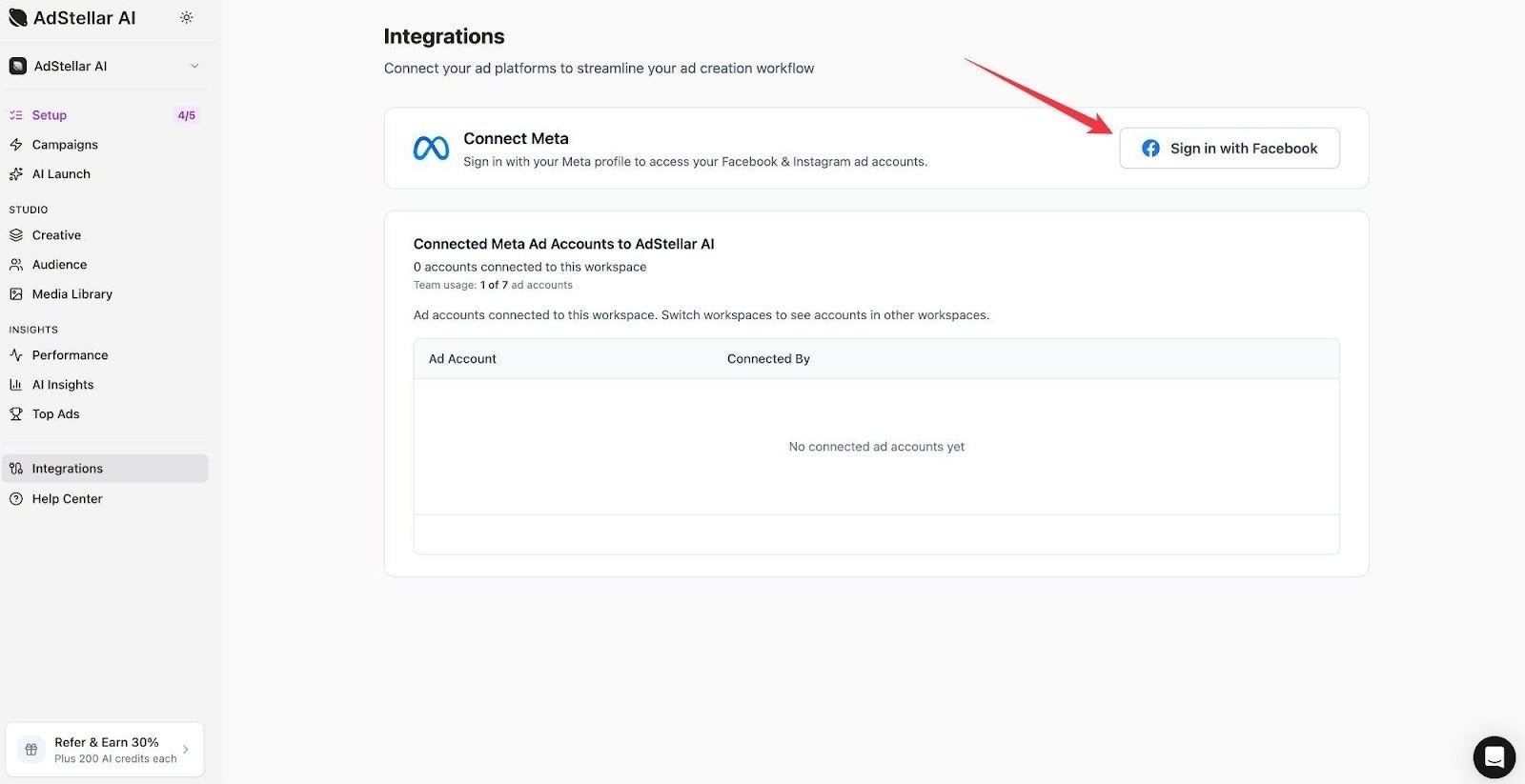
Log in to your AdStellar AI account. In the left-hand sidebar, click **Integrations**, then select the **Meta** card to open the Meta integration page. You'll see the Connect Meta section. If you haven't connected yet, click the **Sign in with Facebook** button to begin.
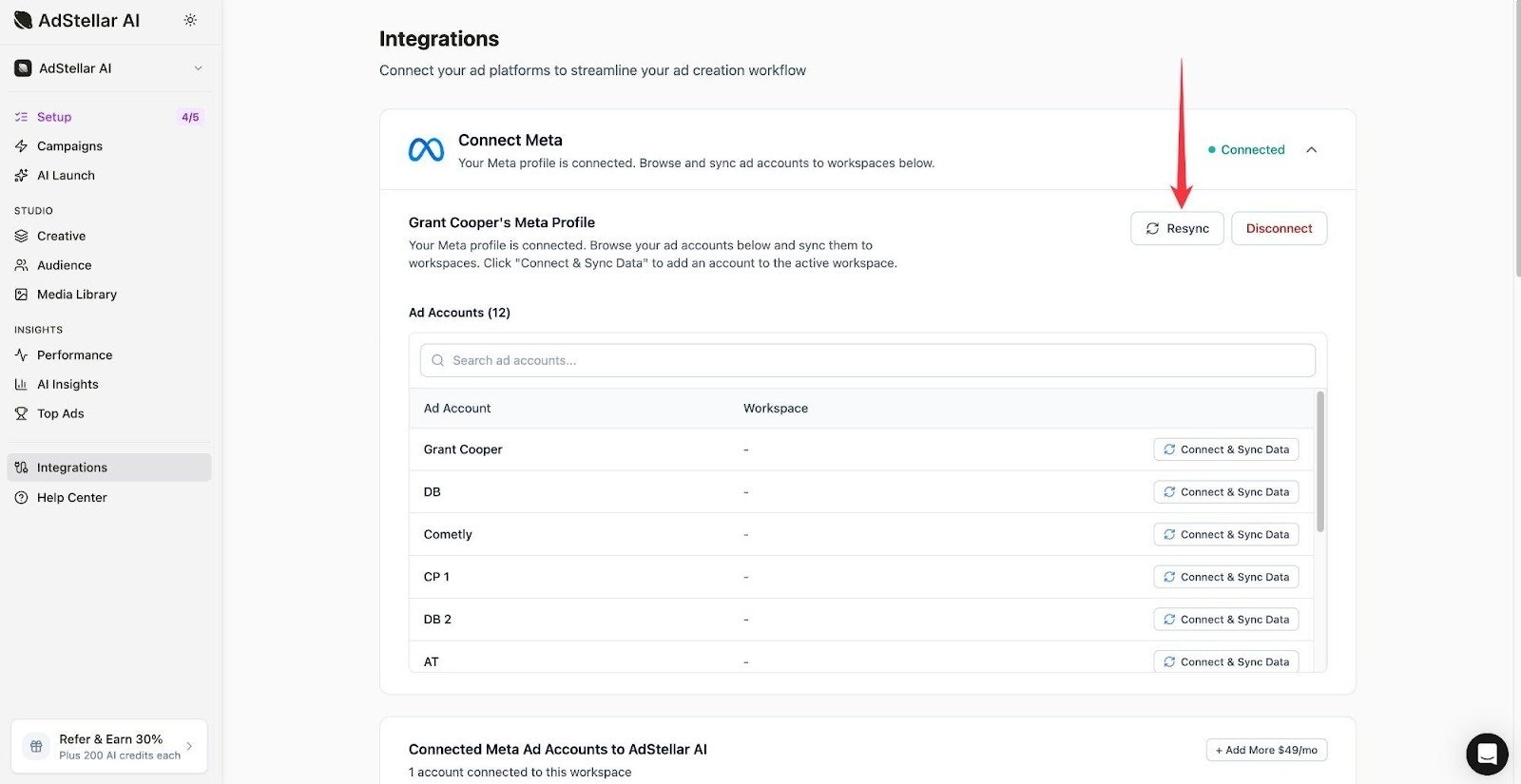
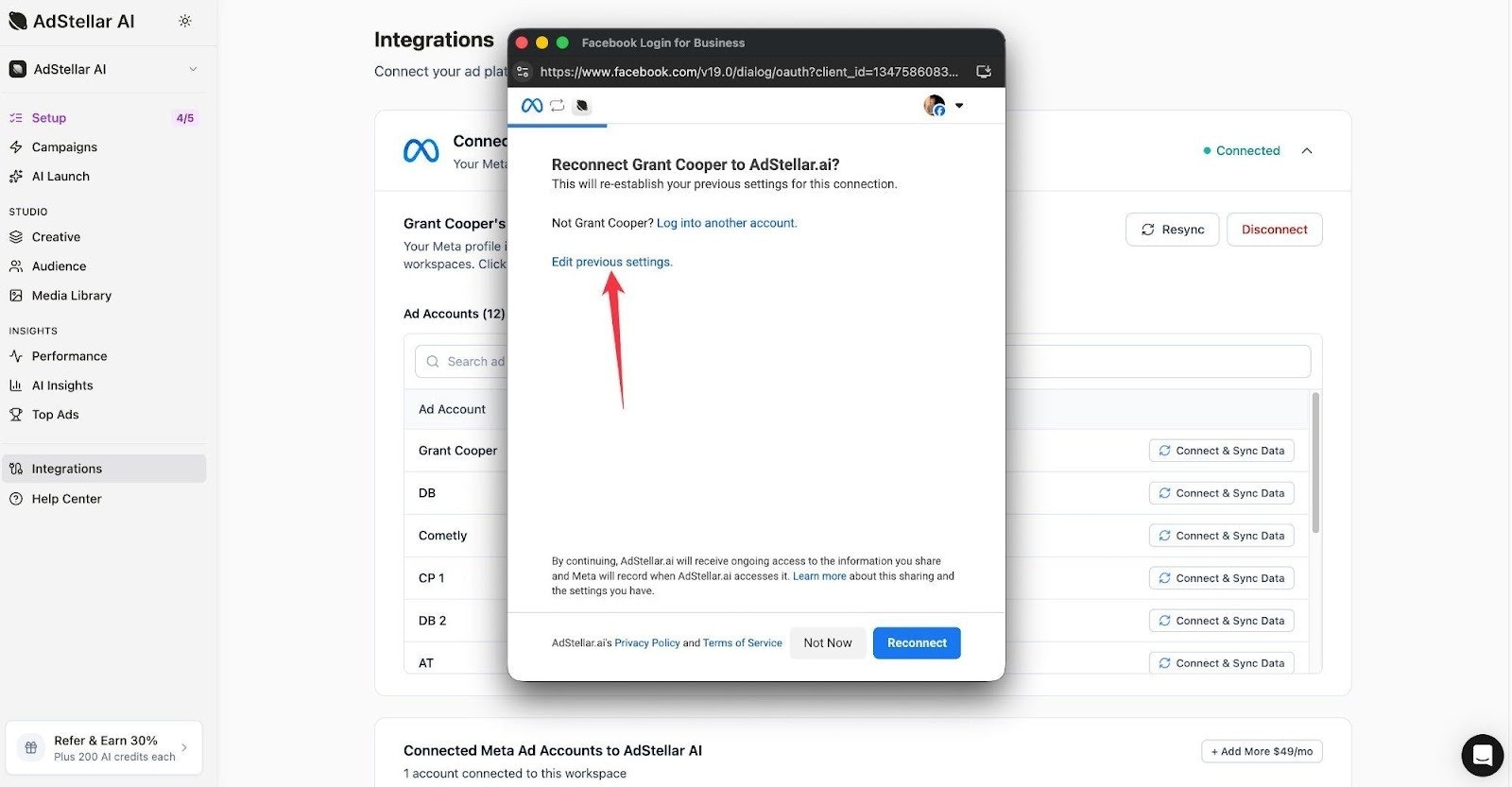
 If you've previously connected your Meta account, you'll see your profile listed with a **Resync** button. To update your permissions or reconnect, click **Resync**. A Facebook Login for Business window will appear. Click **Edit previous settings** to review and update the permissions AdStellar AI has access to, then click **Reconnect**.
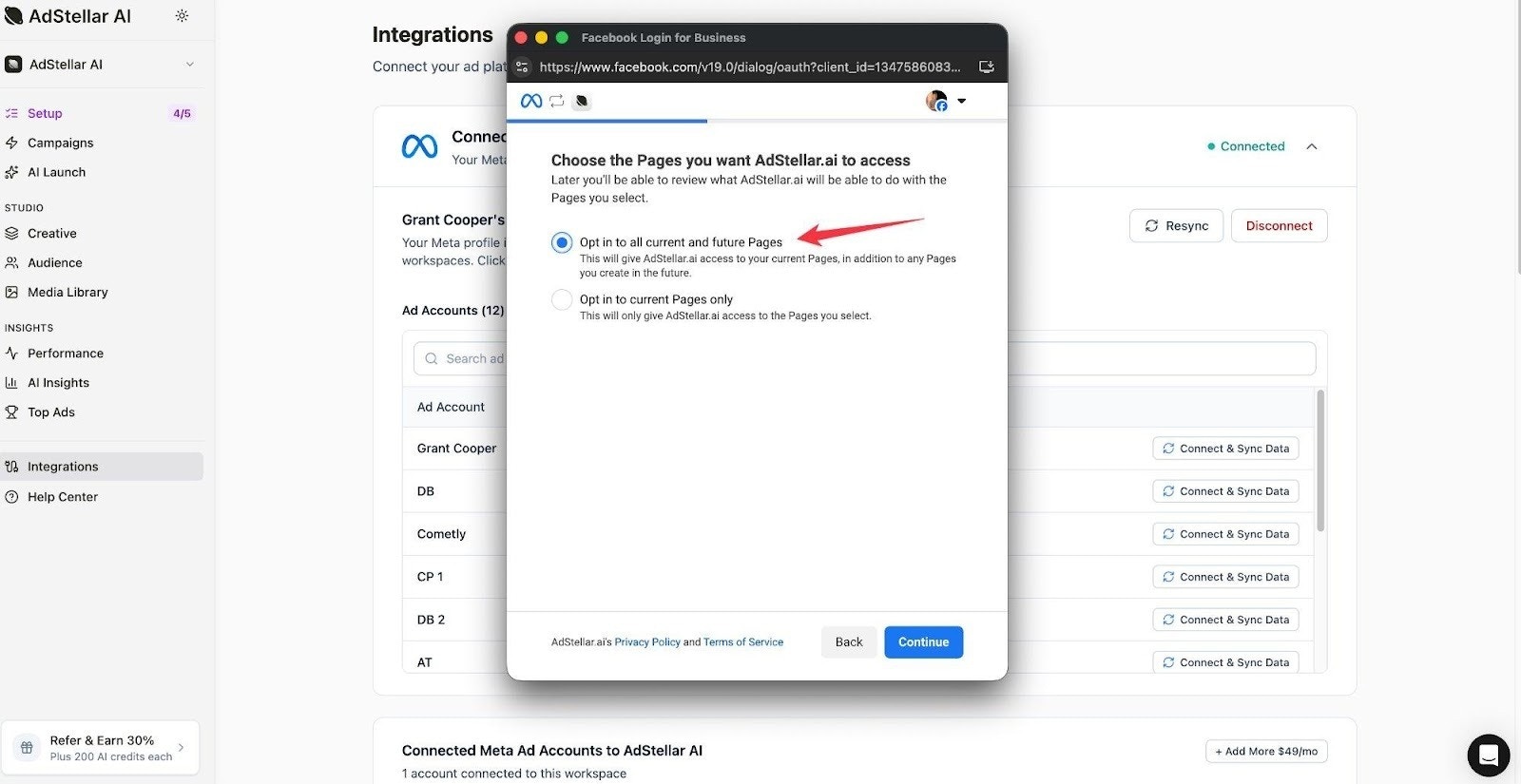
 You'll be asked to choose which Facebook Pages AdStellar AI can access. Select **Opt in to all current and future Pages** to ensure AdStellar AI can work with any Pages you manage now or create later. Then click **Continue**.
This step is required. AdStellar AI needs Facebook Page permissions to create and manage ads on your behalf.
You'll be asked to choose which Facebook Pages AdStellar AI can access. Select **Opt in to all current and future Pages** to ensure AdStellar AI can work with any Pages you manage now or create later. Then click **Continue**.
This step is required. AdStellar AI needs Facebook Page permissions to create and manage ads on your behalf.
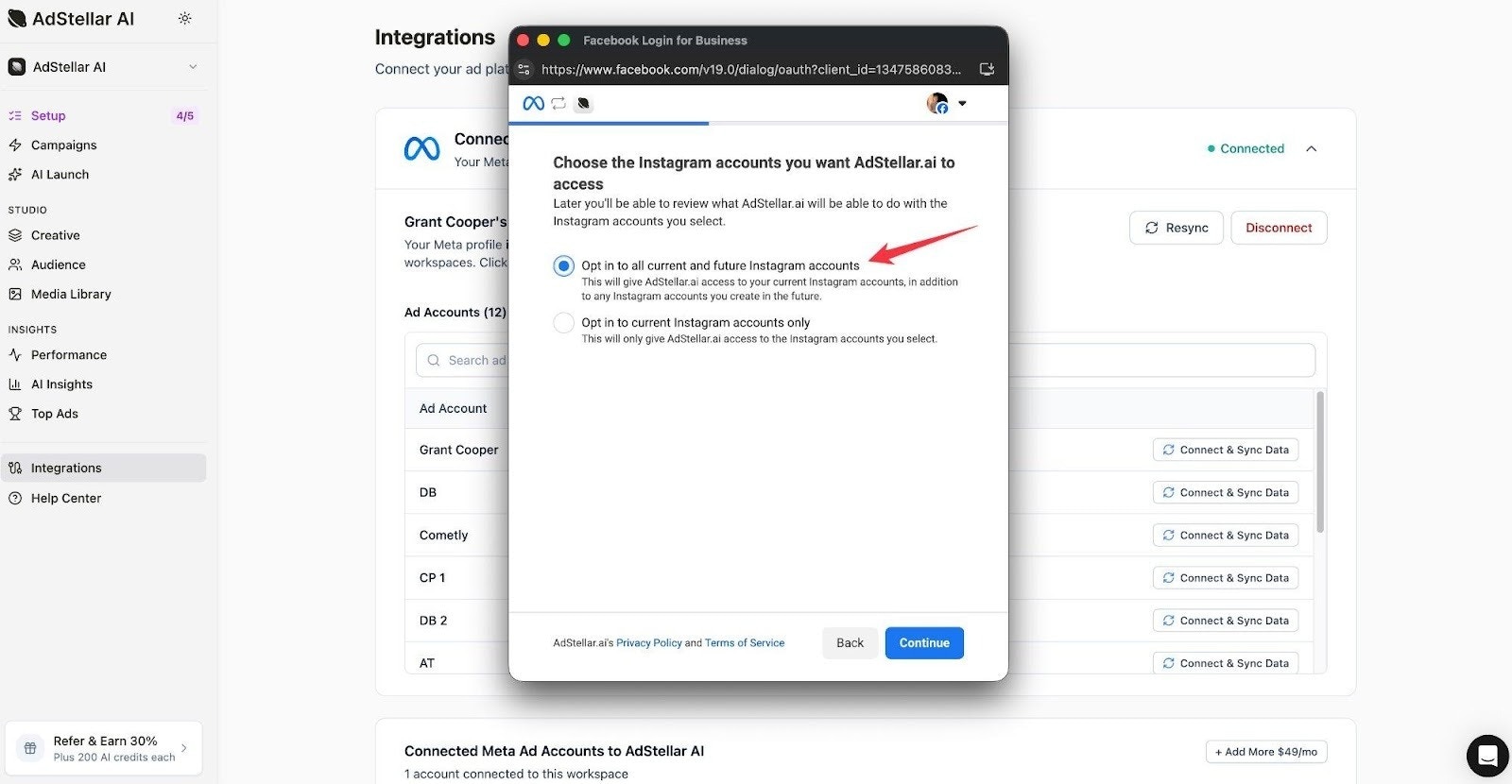
 Next, you'll be asked to choose which Instagram accounts AdStellar AI can access. Select **Opt in to all current and future Instagram accounts** for the smoothest experience, then click **Continue**.
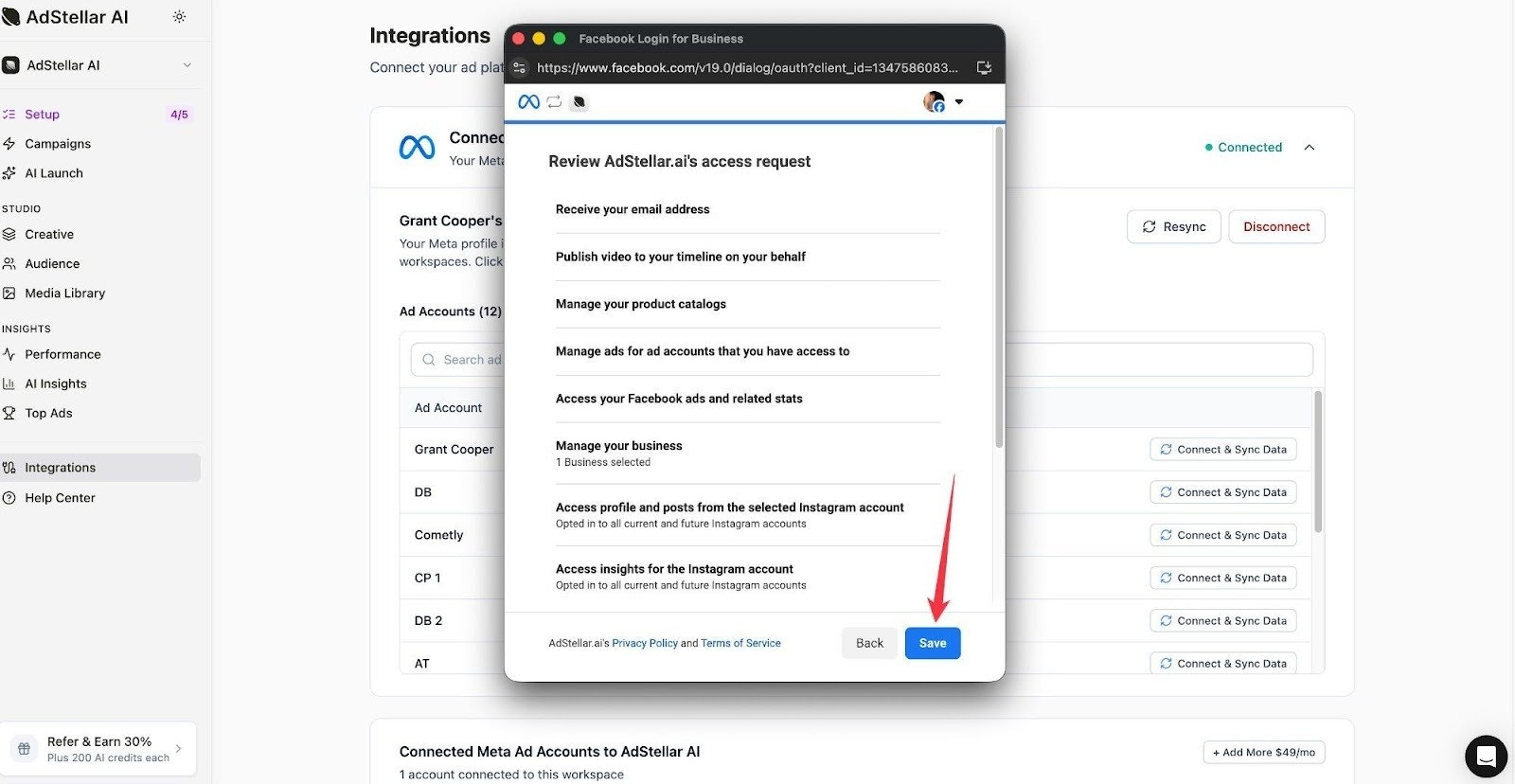
 You'll see a summary of all the permissions AdStellar AI is requesting. Review the list to make sure it includes access to your ad accounts, Facebook Pages, and Instagram accounts. Once you're satisfied, click **Save** to complete the connection.
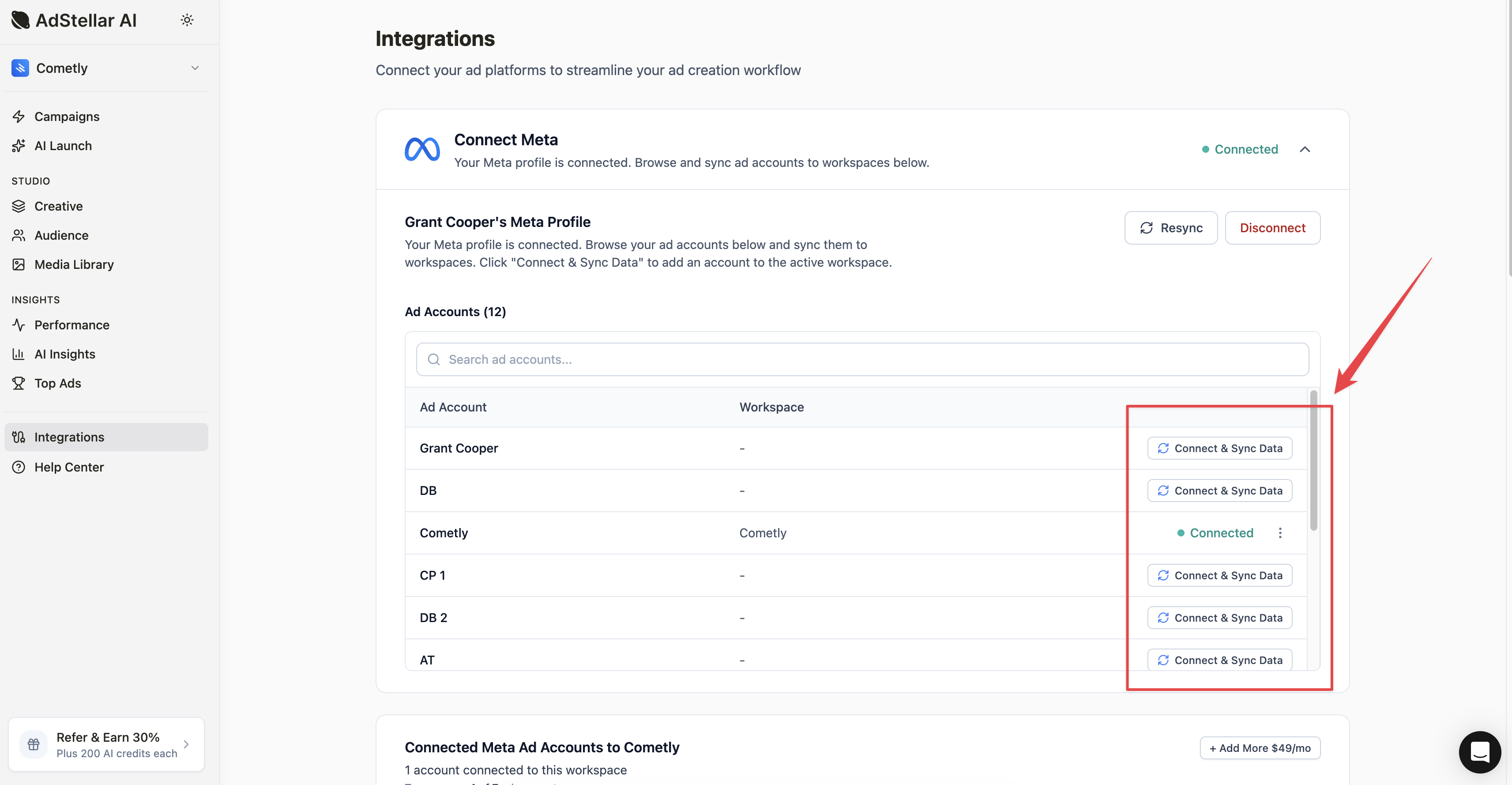
 After completing the Facebook authorization, you'll be returned to the AdStellar AI Meta integration page. You should now see your ad accounts listed. Find the ad account you want to use and click **Connect & Sync Data** to add it to your workspace. This syncs your ad account data into AdStellar AI so you can start building and launching campaigns.
 ## Troubleshooting
If you're experiencing issues with your Meta connection, here are a few things to check:
* **Campaigns failing to launch?** Make sure you granted both ad account and Facebook Page permissions during the Meta authorization. You can fix this by clicking **Resync** on the Meta integration page (Integrations → Meta) and going through the "Edit previous settings" flow to update your permissions.
* **Don't see your ad account?** Click **Resync** to refresh the list of available ad accounts. Make sure the Facebook profile you connected has admin or advertiser access to the ad account in Meta Business Suite.
* **Need to switch Meta profiles?** Click **Disconnect** on the Meta integration page, then reconnect with the correct Facebook profile using "Sign in with Facebook."
* **No Facebook Pages found for your ad account?** This happens when Page permissions weren't granted during setup. Click **Resync** and select "Opt in to all current and future Pages" during the Facebook authorization. Your ad account must also be linked to a Page in Meta Business Manager.
* **Wrong Facebook Page showing?** Make sure the correct Page is associated with your ad account in Meta Business Manager > Business Settings > Pages. AdStellar shows Pages linked to the ad account you selected.
* **Instagram account required?** Some ad placements require an Instagram account. If you don't have one, you can either create one in Instagram or remove Instagram placements from your campaign in the Ad Sets step.
* **Meta created a new ad account instead of connecting my existing one?** During the Facebook authorization, make sure you select your existing ad accounts — don't let Meta create a new one. If this happened, disconnect and reconnect, carefully selecting the correct accounts.
* **Multiple ad accounts showing different currencies?** Each Meta ad account has a fixed currency set at creation. AdStellar shows the currency from Meta. You cannot change an ad account's currency after creation — this is a Meta limitation.
* **Workspace must be created first?** You need at least one workspace before connecting ad accounts. If you see this message, go to **Settings > Workspaces** and create a workspace first, then return to the Meta integration.
If you're still running into issues, reach out to the AdStellar AI support team for help.
## Troubleshooting
If you're experiencing issues with your Meta connection, here are a few things to check:
* **Campaigns failing to launch?** Make sure you granted both ad account and Facebook Page permissions during the Meta authorization. You can fix this by clicking **Resync** on the Meta integration page (Integrations → Meta) and going through the "Edit previous settings" flow to update your permissions.
* **Don't see your ad account?** Click **Resync** to refresh the list of available ad accounts. Make sure the Facebook profile you connected has admin or advertiser access to the ad account in Meta Business Suite.
* **Need to switch Meta profiles?** Click **Disconnect** on the Meta integration page, then reconnect with the correct Facebook profile using "Sign in with Facebook."
* **No Facebook Pages found for your ad account?** This happens when Page permissions weren't granted during setup. Click **Resync** and select "Opt in to all current and future Pages" during the Facebook authorization. Your ad account must also be linked to a Page in Meta Business Manager.
* **Wrong Facebook Page showing?** Make sure the correct Page is associated with your ad account in Meta Business Manager > Business Settings > Pages. AdStellar shows Pages linked to the ad account you selected.
* **Instagram account required?** Some ad placements require an Instagram account. If you don't have one, you can either create one in Instagram or remove Instagram placements from your campaign in the Ad Sets step.
* **Meta created a new ad account instead of connecting my existing one?** During the Facebook authorization, make sure you select your existing ad accounts — don't let Meta create a new one. If this happened, disconnect and reconnect, carefully selecting the correct accounts.
* **Multiple ad accounts showing different currencies?** Each Meta ad account has a fixed currency set at creation. AdStellar shows the currency from Meta. You cannot change an ad account's currency after creation — this is a Meta limitation.
* **Workspace must be created first?** You need at least one workspace before connecting ad accounts. If you see this message, go to **Settings > Workspaces** and create a workspace first, then return to the Meta integration.
If you're still running into issues, reach out to the AdStellar AI support team for help.